Lists, filters and export
Search a list, narrow it with filters, choose its columns and export exactly the rows you filtered.
Every list in Teller Operations, such as customers, savings accounts or the loan portfolio, works the same way. The controls sit in the second row of the header, always in the same order: search, Filter, View, then the page's own buttons on the right.
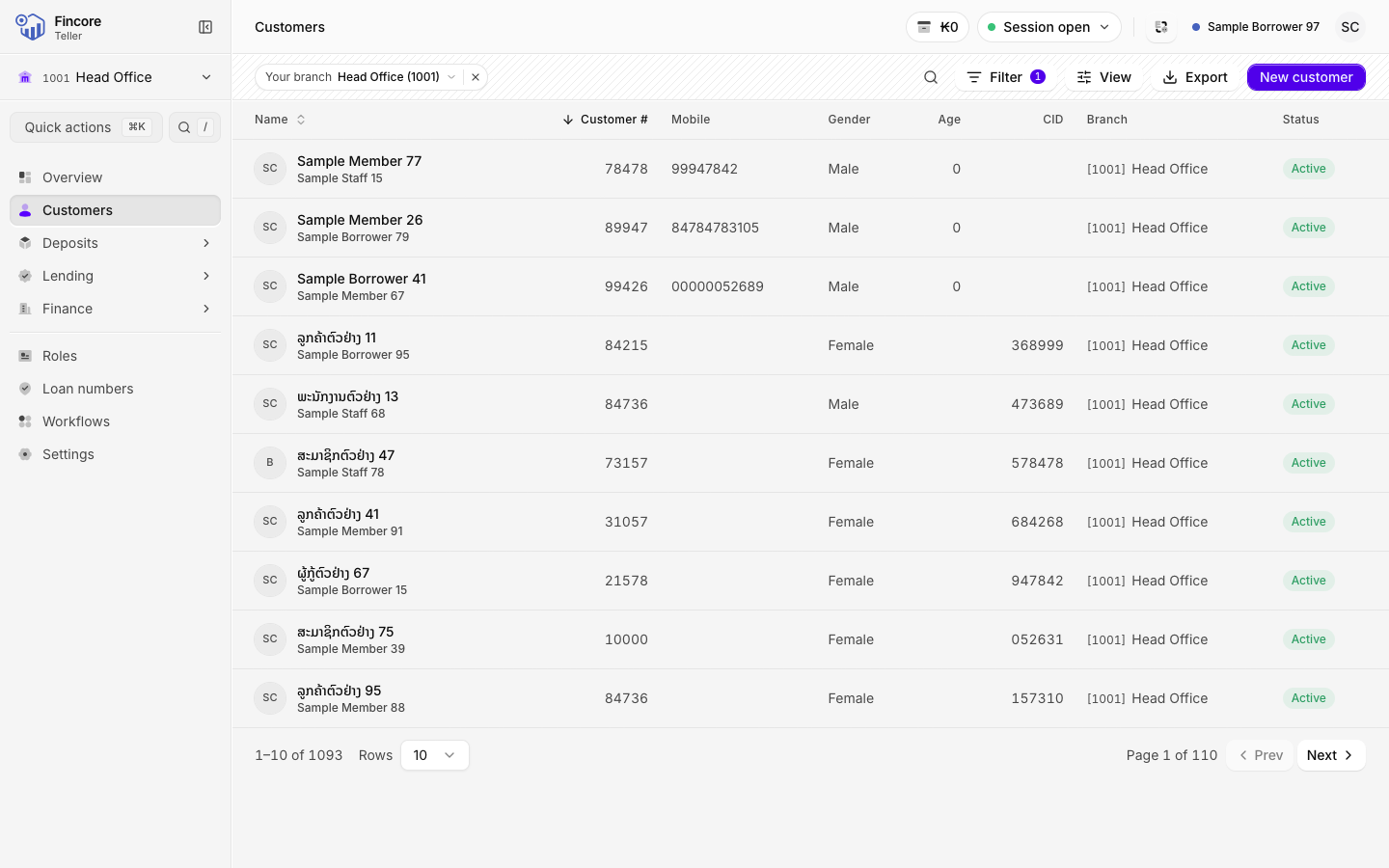
Search
Open the search box
Select Search (the magnifier). It opens into a text box.
Type what you are looking for
Type a name or a number. You do not choose a field: the app works out whether you typed a name, an account or customer number, a mobile number or a CID. The list updates shortly after you stop typing.
Clear the search
Select Clear search (the × in the box) to see the whole list again.
Filter
Open the Filter menu
Select Filter. The menu lists the fields this page can filter on. A number on the button says how many filters are on.
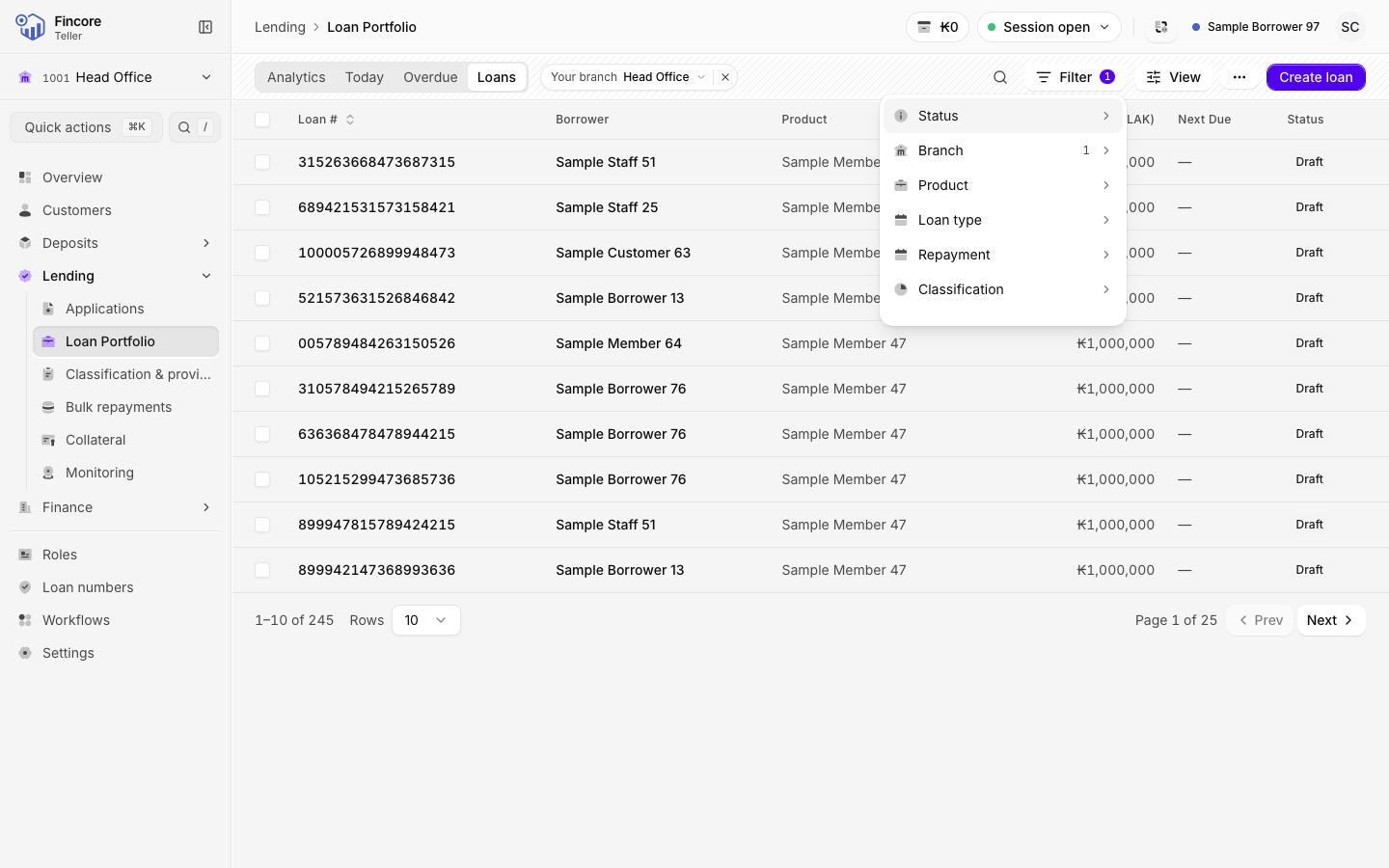
Choose a field and tick values
Select a field, then tick one or more values. The list changes as you tick. To pick another field, go back with the arrow at the top of the menu.
Read and change the chips
Each active filter becomes a chip on the left of the same header row, for example Your branch. Select a chip to change its values. Select the × on a chip to remove that filter. With two or more chips, Clear all removes them all.
The filters stay in the address bar. Copy the link to send a colleague the same filtered list, and the browser's back button returns to the filters you had before.
Choose columns and order
- Select View to tick which columns the table shows.
- Select a column heading to sort by it. Select it again to reverse the order, and a third time to remove the sort.
- At the foot of the table, choose how many Rows to show per page, and move with Prev and Next.
Export a list
Filter the list first
The export contains the rows your search and filters select, across every page, not only the page on screen.
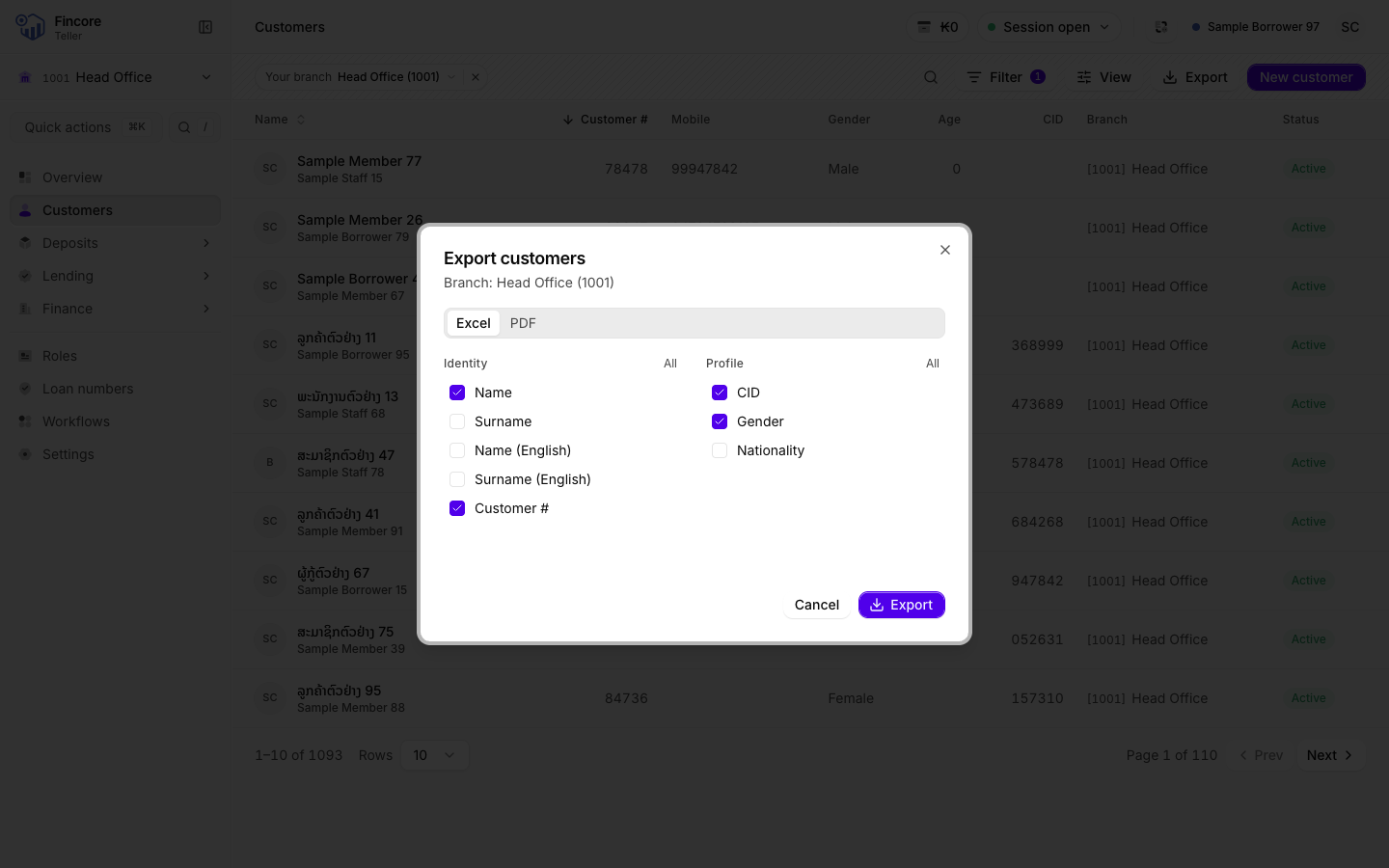
Choose the format
Under Format, choose Excel or PDF. Excel keeps amounts as numbers, so the sheet can add them up.
Choose the fields
Under Fields, the fields that match the table's visible columns are already ticked. Tick or untick fields, or use All on a group to tick the whole group. The file can include fields the table does not show.
Export
Select Export. A progress bar shows how many records have been read. Excel files go to your downloads folder. For PDF, the browser's print window opens: choose your printer, or save as PDF.
If something goes wrong
- Nothing matches the current filters, so there is nothing to export. Change or remove a filter, then export again.
- A warning that only the first part of the list was read. Very long lists stop at a limit. The file is held back, and the button changes to Export anyway. A file exported anyway is marked as a partial extract at the top. For a complete file, narrow the filters and export in parts.
- The export could not be completed, so no file was written. The export stopped before it finished. No half file is written. Try again.
- The list looks shorter than expected. Check the chips first. A Your branch chip limits the list to your working branch; remove it to see every branch.
- A list with All branches beside the controls cannot be filtered by branch, so it always shows every branch.
Your bank may differ
Which lists offer Export, and which fields they can filter on, depend on the list and on how your bank set up the app.