Workflows
Change the steps a teller goes through for a deposit, withdrawal, repayment or account funding, and publish the change.
A workflow is the list of steps a teller works through when money crosses the counter: what they enter, how the customer is verified, whether a manager must approve, and the review before posting. Your bank can add checks to the standard steps and publish them to every counter.
What a workflow controls
There is one workflow per operation, such as Savings deposit, Savings withdrawal, Loan repayment and Fixed deposit onboarding.
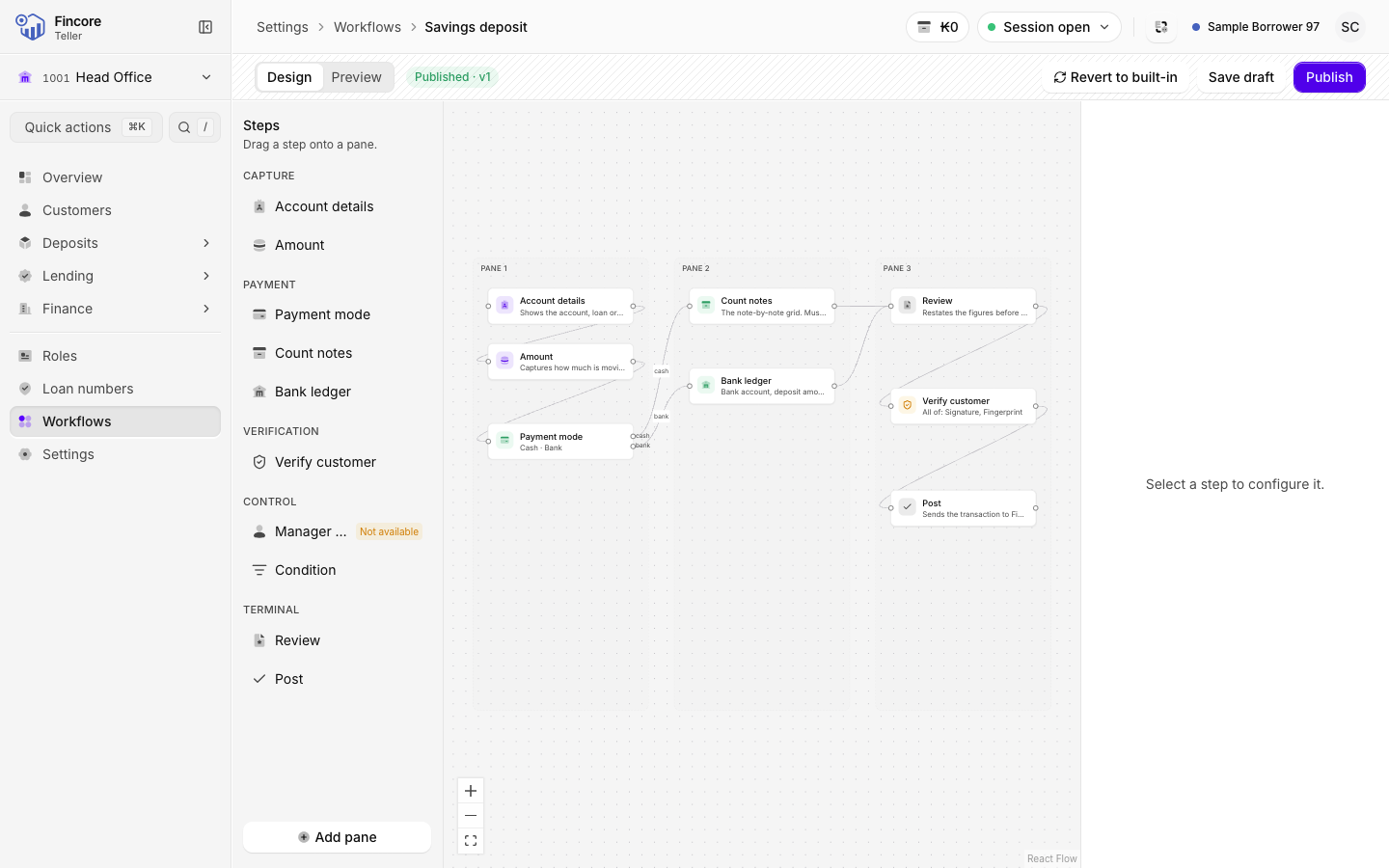
Each one is built from steps, for example Amount, Payment mode, Count notes, Verify customer, Manager approval and Review. The steps sit in panes. Each pane is one screen of the teller's dialog, read from left to right.
Before you start
- You need the Workflow admin role. Without it the screen shows Workflow designer and explains who can grant it. See Roles.
Open the workflow list
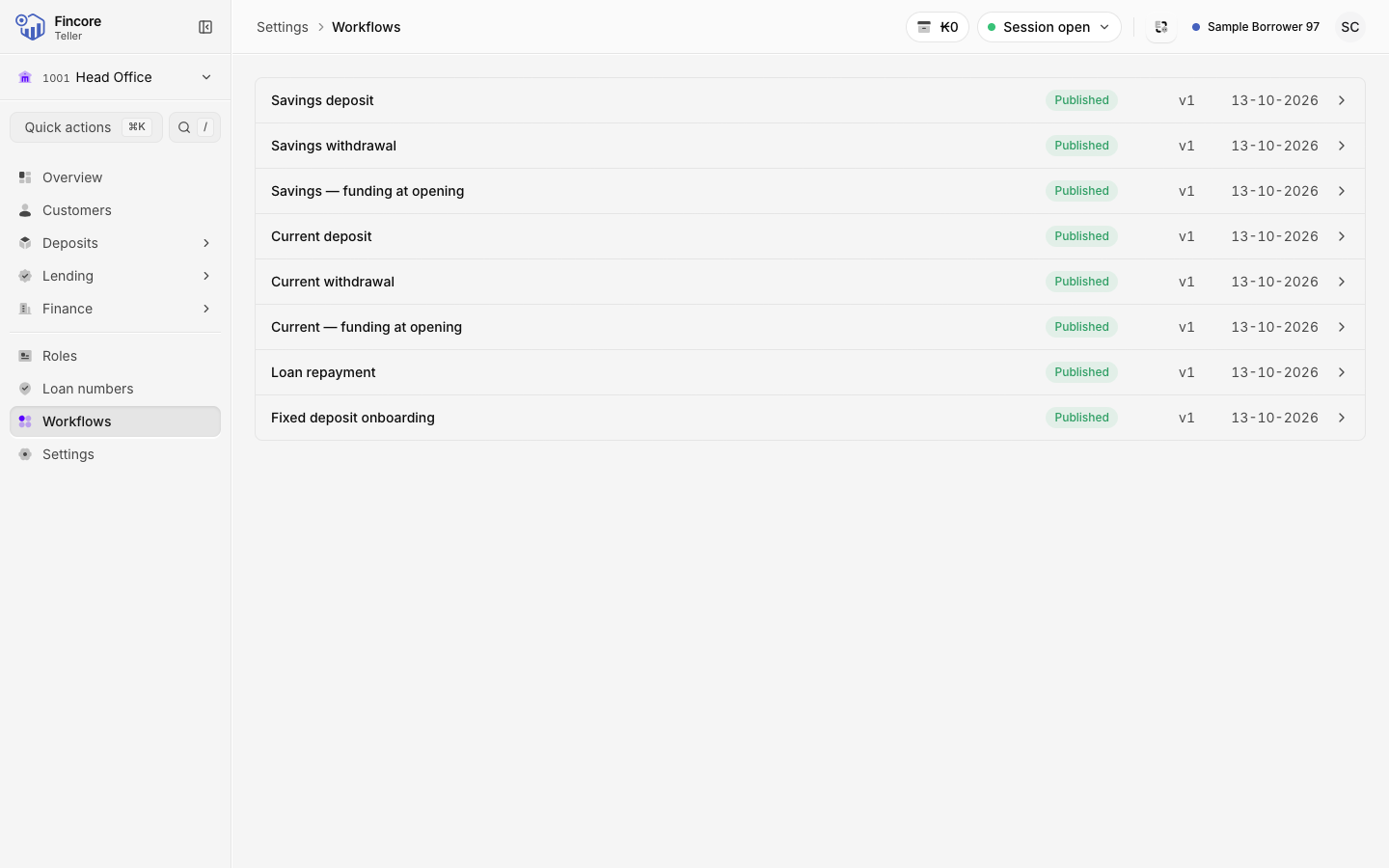
Select Workflows in the sidebar. Each operation shows its state: Built-in (the standard steps), Draft or Published, with its version and the date it was last published. Draft pending means someone has saved changes that are not live yet.
Open an operation
Select an operation. The Design tab opens with Steps on the left, the panes in the middle and Step settings on the right.
Change the steps
- To add a step, drag it from Steps onto a pane. To add a screen, select Add pane.
- To change a step, select it and set its options on the right. For Verify customer, choose the Checks offered and How many must be answered.
- To remove a step, select it and choose Remove step. A step the operation needs shows Required by this operation — it cannot be removed..
Anything that stops the workflow from working is listed under Problems below the panes. Select Show the step to jump to it.
Try it on the Preview tab
Open Preview. It runs the workflow the way a teller would see it, on made-up figures, and posts nothing. Select Start again to go through it again.
Save a draft, then publish
Select Save draft to keep your changes without changing anything at the counter. When the workflow is ready, select Publish. Publish stays unavailable while there are problems to fix.
Every counter in the bank uses the published version from the next transaction.
Good to know
- A step marked Not available can be put in a draft but not published.
- Revert to built-in switches the operation back to the standard steps for every counter. To confirm, you type the operation's short name exactly as the dialog shows it. The published version is archived, not deleted, and your draft is kept.
- If someone else saved the same workflow while you were editing, the app asks you to reload before saving again.
- If your bank's version cannot be loaded, the teller's dialog shows a notice and uses the standard steps. Any extra checks your bank added are not applied until it loads again.
Your bank may differ
Which workflows your bank has changed, and which verification methods are offered (signature, fingerprint, one-time code), depend on your bank. Some methods may be available in a draft but not publishable for your bank.