Settings
Check your own access, change the theme and language, set your branch PIN, and manage the bank's BOL, document and logo settings.
Settings has two kinds of tab. The first three are about you: what you may do, how the app looks, and your branch PIN. The rest are bank-wide settings. Everyone can read them, and only the role named on each tab can change them.
Open Settings
Select Settings at the bottom of the sidebar. The tabs are along the top: Access, Display, Security, BOL returns, BOL documents, Fixed assets and Branding.
See what you are allowed to do
Access lists every operation the app checks, such as Pay out a withdrawal, and whether you may do it. Under Your roles are the roles on your core banking account. If something you need is not allowed, ask your branch administrator.
Change the theme and language
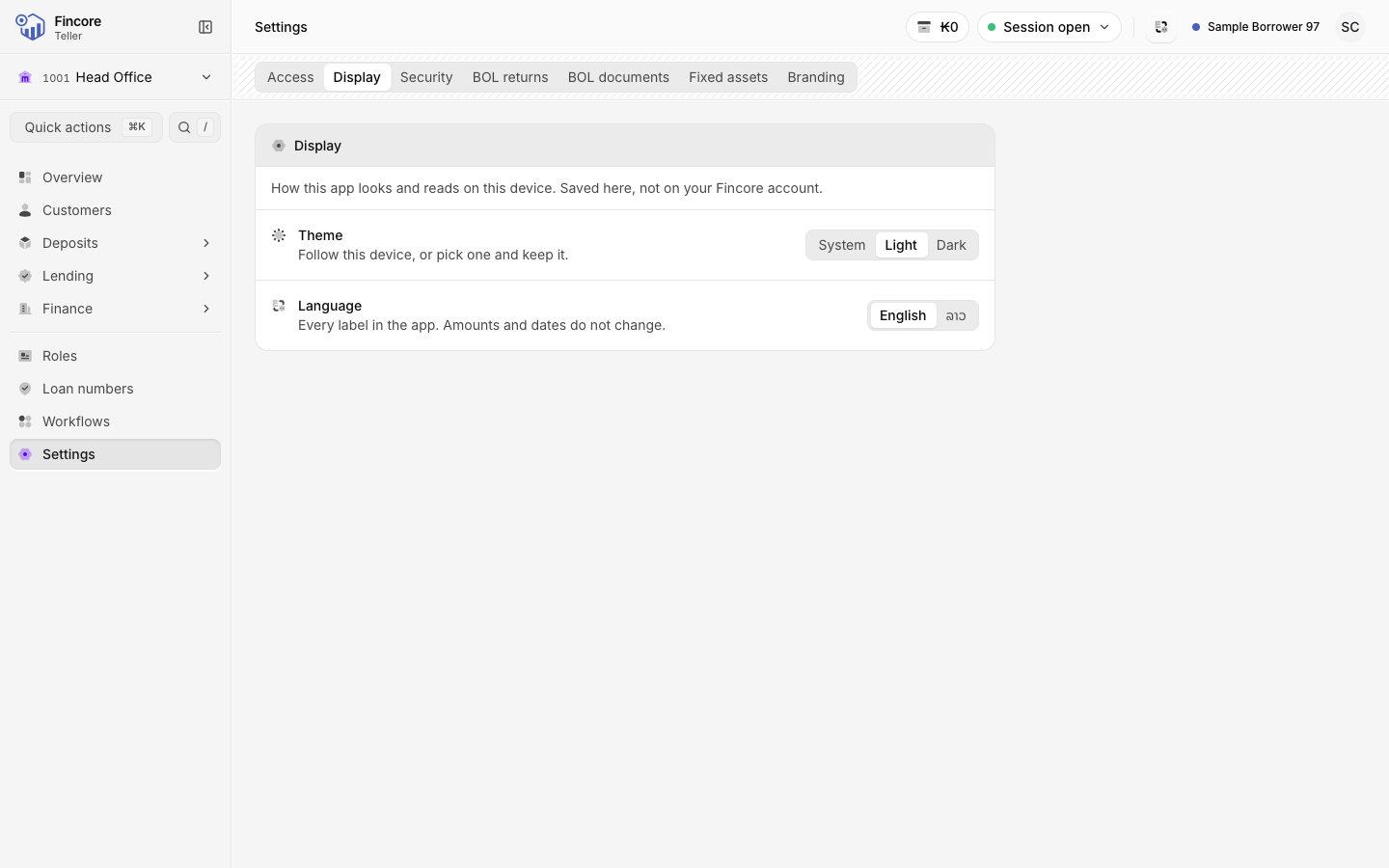
On Display, choose a Theme: System, Light or Dark. Under Language, choose Lao or English. The change applies at once. It is saved in this browser on this device, not on your core banking account, so another computer keeps its own choice. Amounts and dates do not change.
Set or change your branch PIN
On Security, select Set PIN or Change PIN, enter the PINs and select Save PIN. The app asks for this PIN every time you switch branch. Recent branch switches lists your last switches. See Choose your working branch.
Bank-wide settings
BOL returns
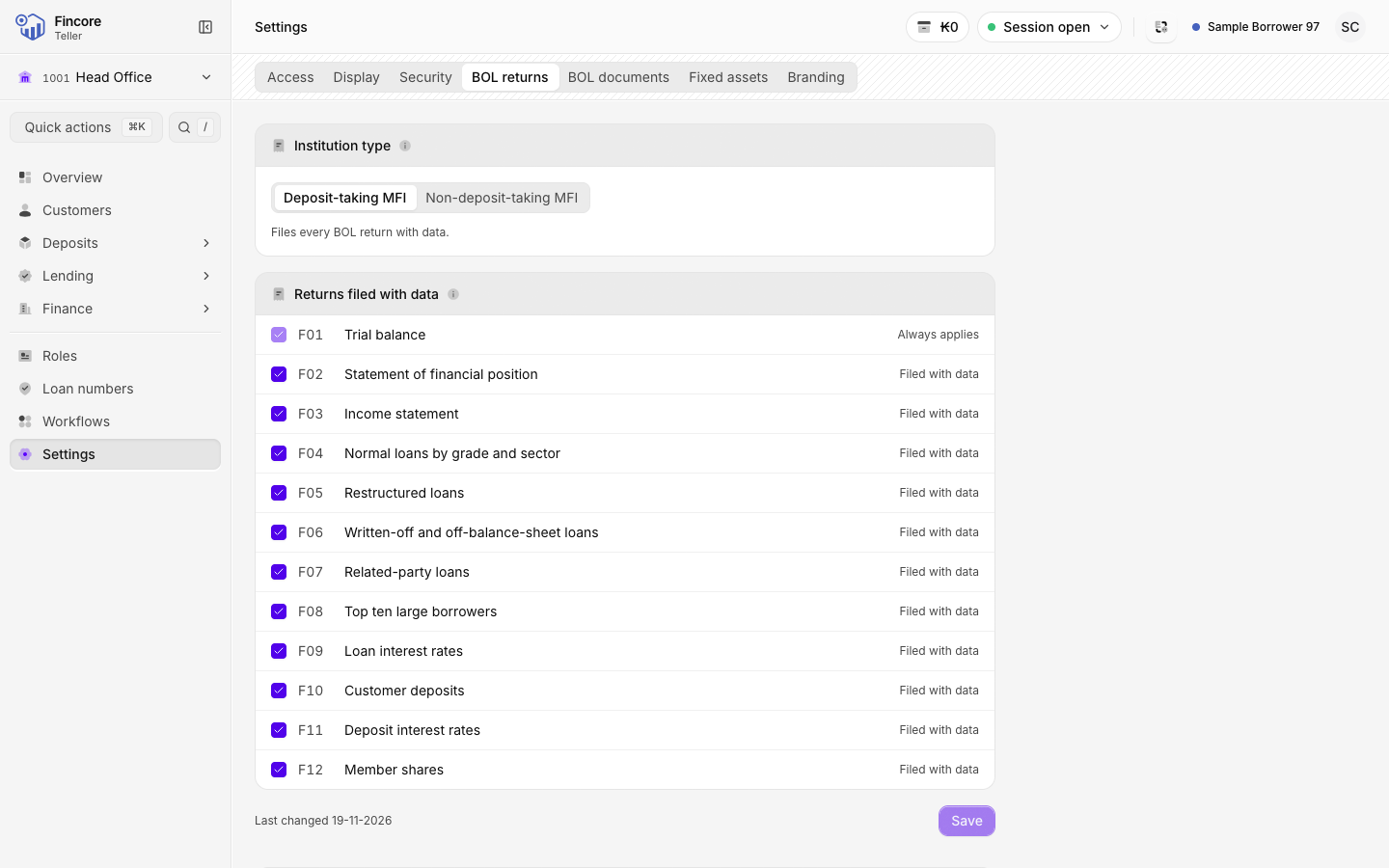
BOL returns decides which BOL returns your institution files with data.
- Under Institution type, choose Deposit-taking MFI or Non-deposit-taking MFI. This ticks the standard set of returns for that type.
- Under Returns filed with data, untick any other return your institution does not file. A return that is not ticked prints and exports as the empty BOL template.
- Select Save. To go back to the standard set, select Reset to standard set.
Only a Super admin can change this. Others see Only a super admin can change this setting.
Below it, GL movement report codes holds the fee and penalty income codes the GL movement report shows on their own. Enter a 7-digit code, select Add, then Save codes. Only a Report admin can change them.
BOL documents
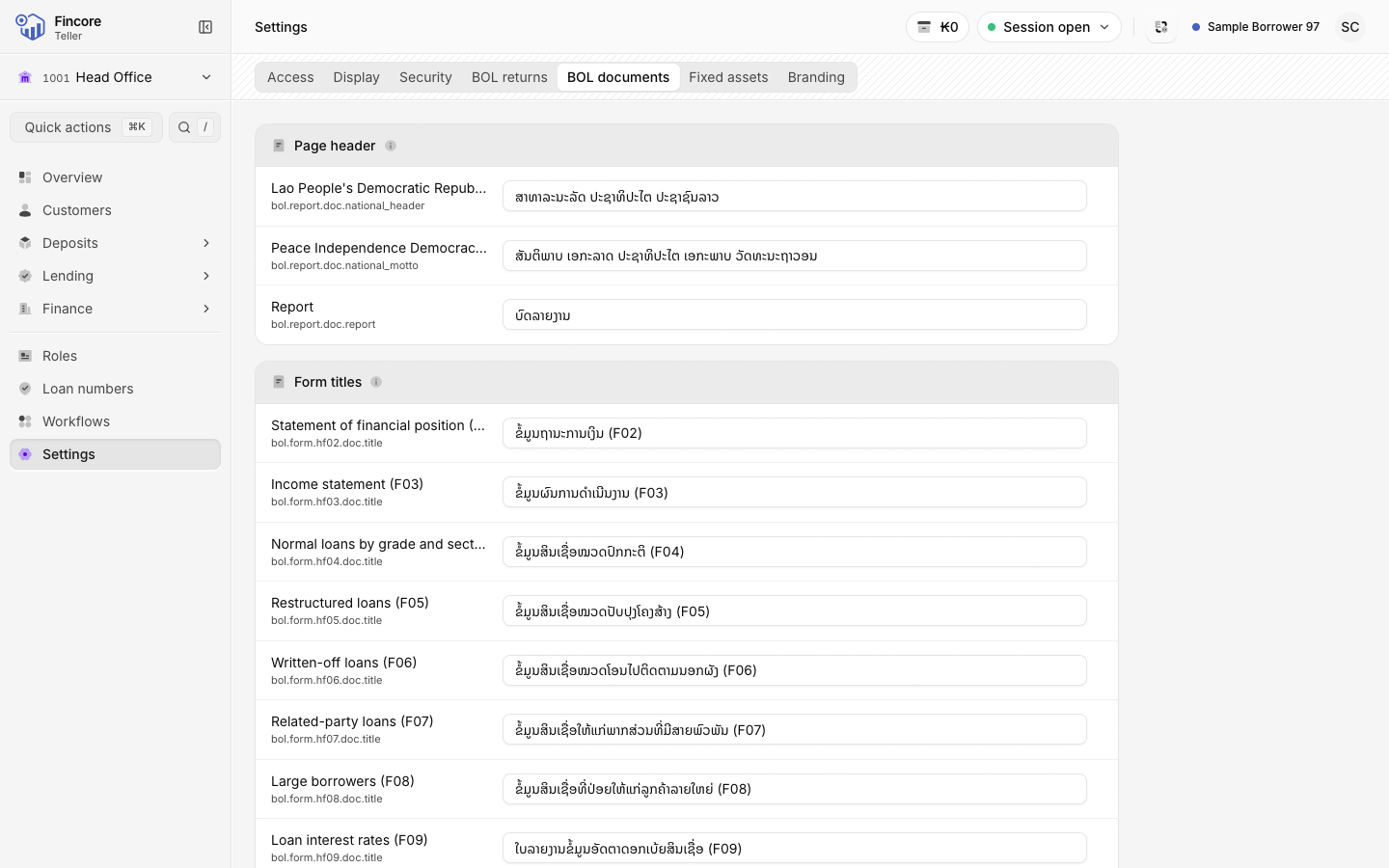
BOL documents lists the Lao captions printed on every BOL return: the page header, form titles, the institution block, table captions, and the signatures and footer. Each row shows the English source beside the Lao wording.
To change a caption, edit the Lao text and select Save. The next export prints it. A changed caption is marked Customised. Select Revert to go back to the standard wording. Only a Translator or Admin can edit captions.
Fixed assets
Fixed assets holds the depreciation settings, the asset categories and their account mappings. See Fixed assets.
Branding
Branding shows the Letterhead logo, printed beside the title on every report and return. A Super admin can select Upload logo or Replace logo and choose a PNG, JPEG or WebP image up to 512 KB. The logo saves as soon as you choose the file. Remove takes it off.
Your bank may differ
Which BOL returns your bank files, the wording on its BOL documents and its logo are set per bank. If a return prints as an empty template, check the BOL returns tab before reporting a problem.