Edit customer details
Correct a customer's details on their record, one section at a time, and keep their identity documents up to date.
You change a customer's details on their own record, not in the registration form. Each section saves on its own, so fixing a phone number never asks you for an address or an ID number.
Before you start
- Open the customer's record. See Find a customer.
- Check the change against the customer's documents before you save it.
Turn on editing
Select Edit at the right of the header. Every section on the tab you are on opens for editing, and the button changes to Done.
To change one section only, select the Edit button on that section instead.
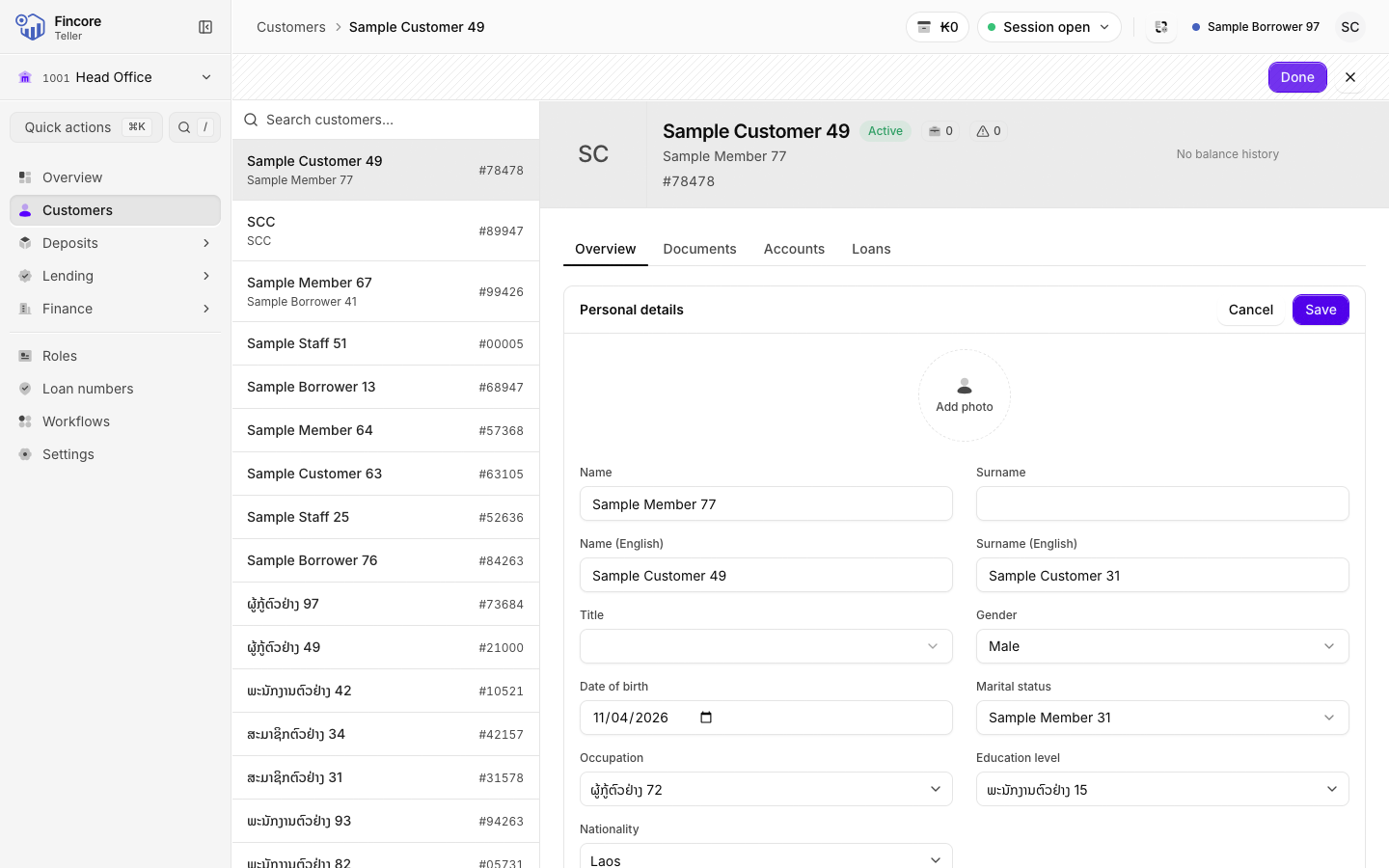
Change the fields
On the Overview tab there are three sections:
- Personal details: the customer's photo, names in Lao and English, Title, Gender, Date of birth, Marital status, Occupation and Nationality. Name is the only field that cannot be left empty.
- Contact: Mobile, Mobile 2, Mobile 3, Phone, Email and Website.
- Address: Province, District and Village, then City, Street, Street 2, Postcode and Current residence. Choose a province before a district, and a district before a village.
When you change a field, the section shows You have unsaved changes in this section.
Save the section
Select Save on that section. Only that section is checked and saved. When it is done, the section shows Saved and closes.
To throw away your changes to a section, select Cancel on it, or press Esc while you are in it. You can also save a section with ⌘ ↵ (Ctrl ↵ on Windows).
Finish editing
Save or cancel each section you opened, then select Done in the header.
Update identity documents
Open the Documents tab in editing mode
Select the Documents tab, then select Edit in the header. Documents that are not on file yet can now be opened and filled in.
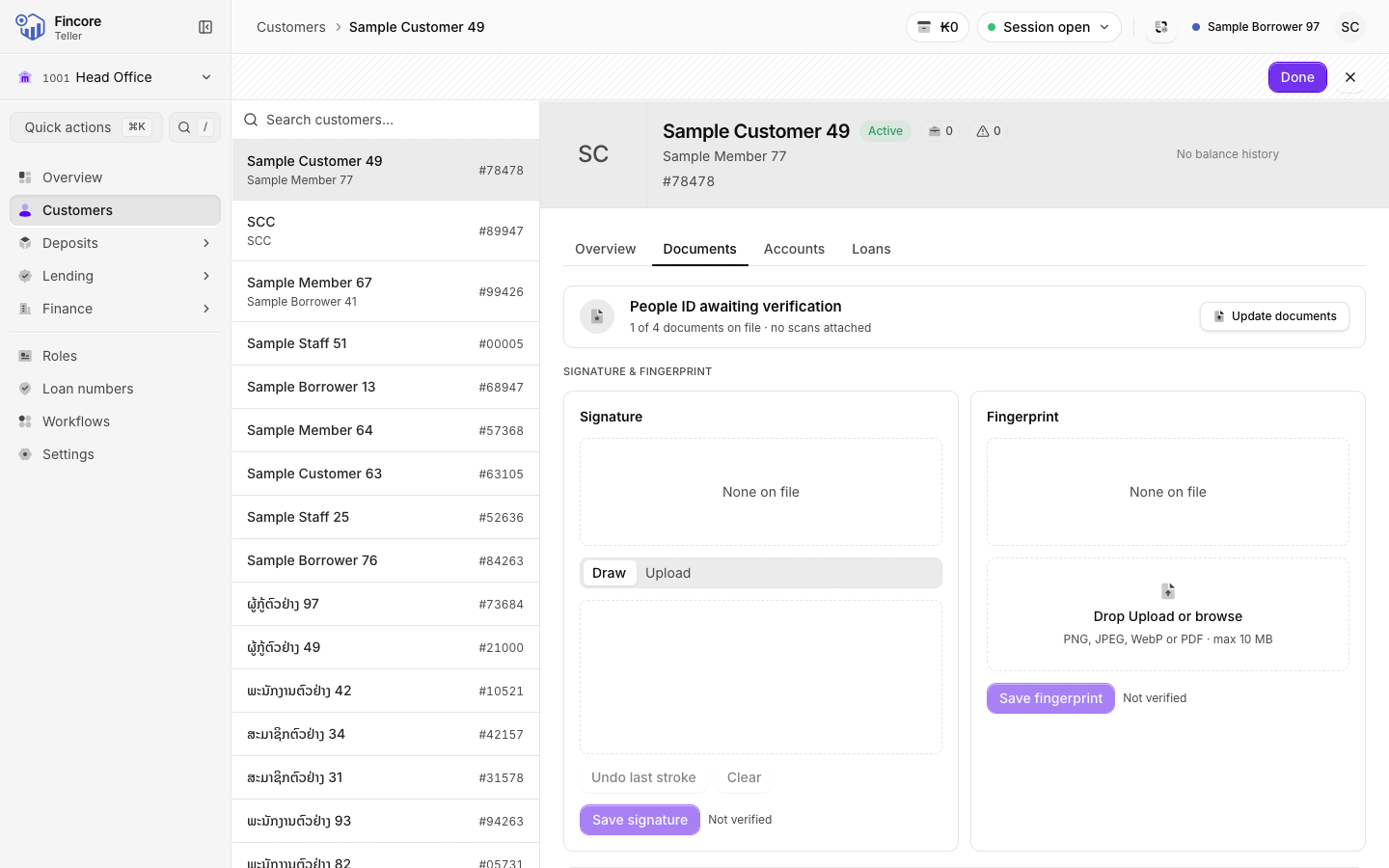
Correct the document details
Open the People ID, Passport, Family book or Other ID. Change its Number, Name on ID, Issued or Expires, then select Save under it. The expiry date cannot be before the issue date.
Add or remove a scan
Select Add a scan and choose the file. It uploads straight away; you do not need to select Save. A new scan is added beside the old ones, and the newest is marked as the current one.
To remove a scan, select the remove button on it, then Remove scan to confirm, or Keep it to keep it.
Good to know
- Editing stays on the tab you are on. Turning it on from the Documents tab does not send you back to Overview.
- If you try to reload or close the page with unsaved changes, the browser asks you to confirm first.
- If a save is refused, a message explains why, next to the field where it can. Nothing in that section was saved; correct it and select Save again.
- The signature and fingerprint are on the Documents tab and do not need editing mode. See The customer record.
Your bank may differ
Education level appears in Personal details only at banks that record it.