Find a customer
Search the customer list, narrow it with filters and open a customer's record.
Most counter work starts with the customer. Find them first, then open the account or loan you need from their record.
Open the customer list
Select Customers in the sidebar. The list opens filtered to your working branch, shown as the Your branch chip above the table.
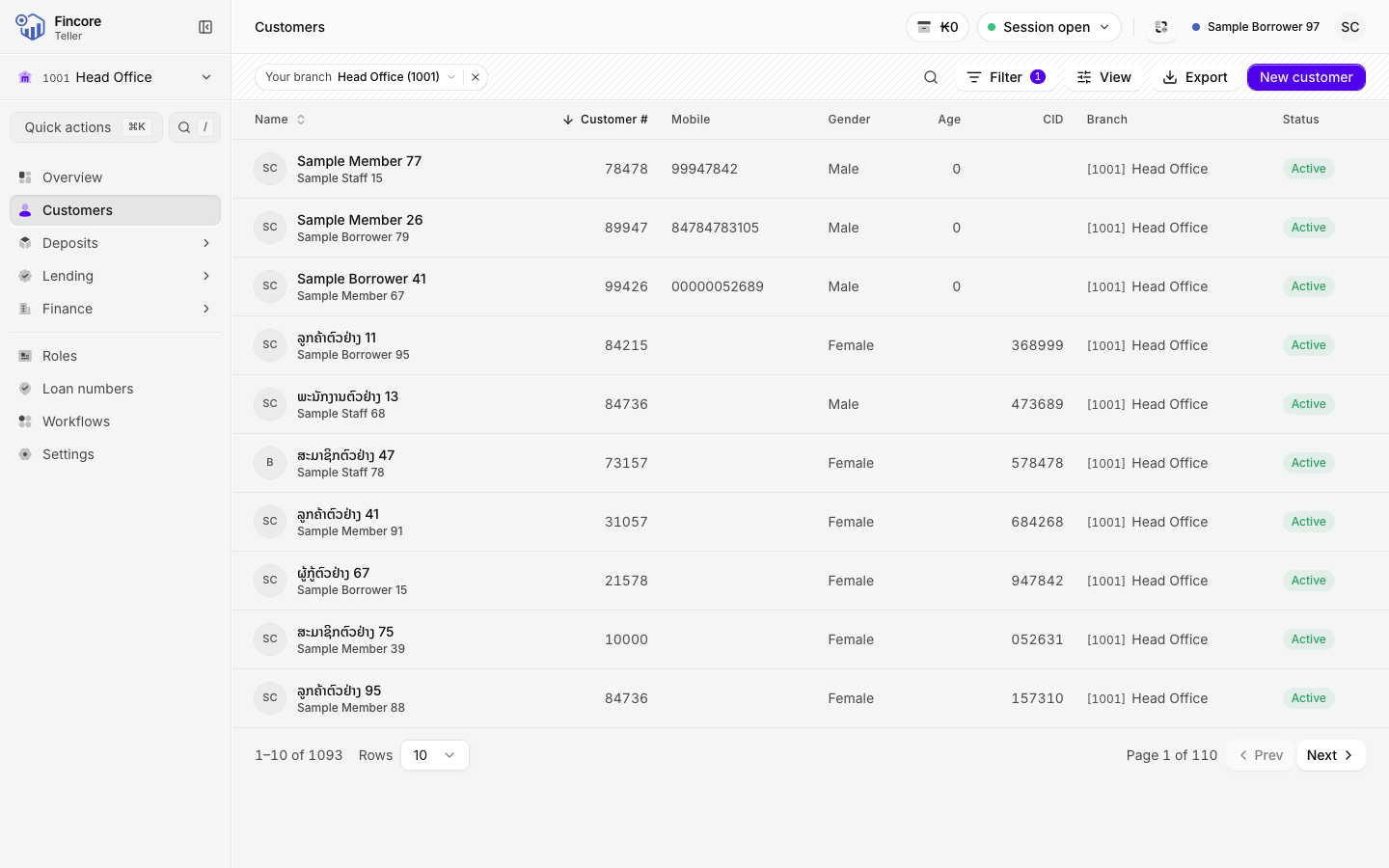
Search
Select Search and type a name, customer number, mobile number or CID. The list updates as you type. To start again, select Clear search.
Narrow the list with filters
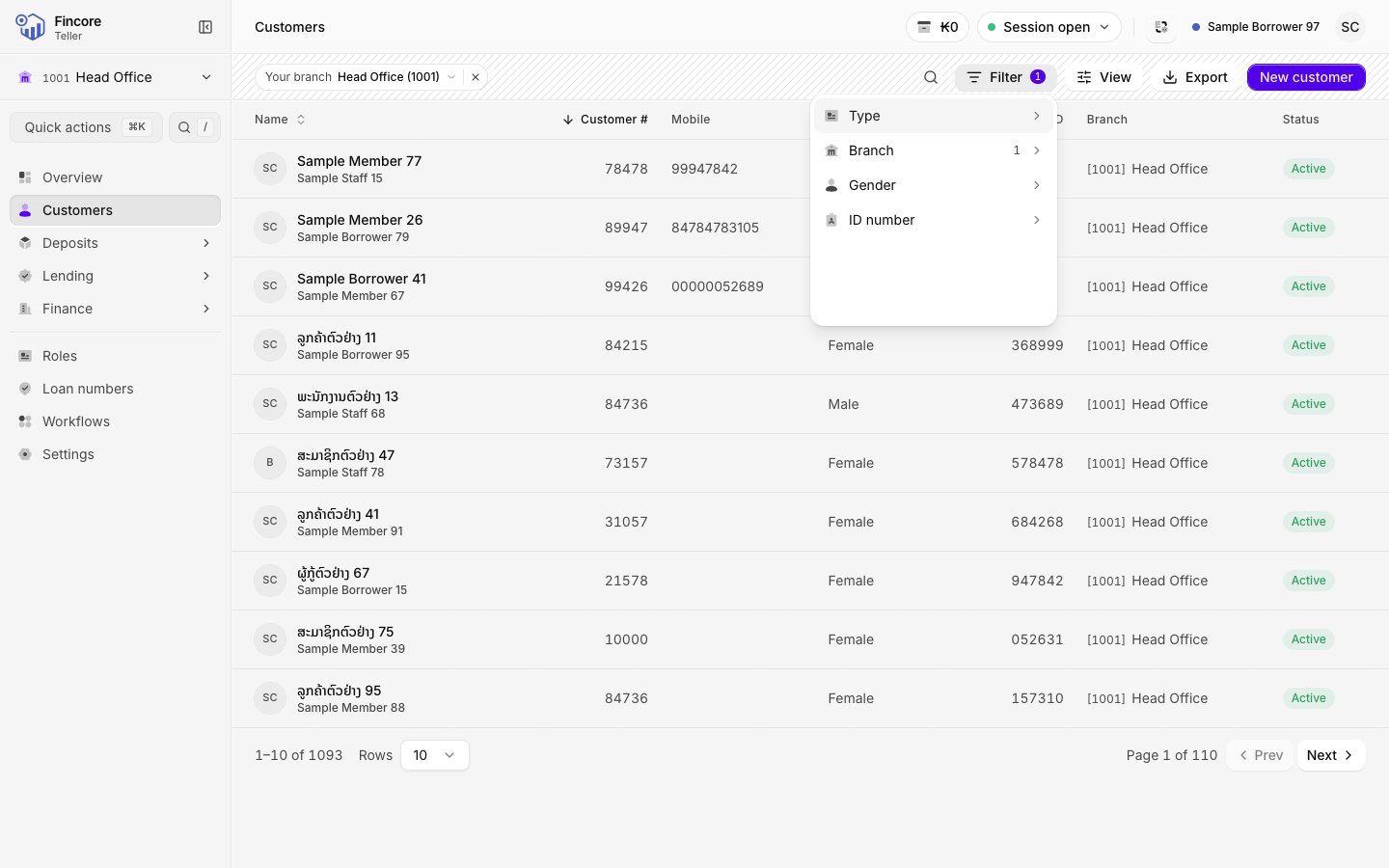
Select Filter, choose a field, then tick the values you want. Each active filter becomes a chip in the header. Select the × on a chip to remove it, or remove the Your branch chip to search every branch.
Open the record
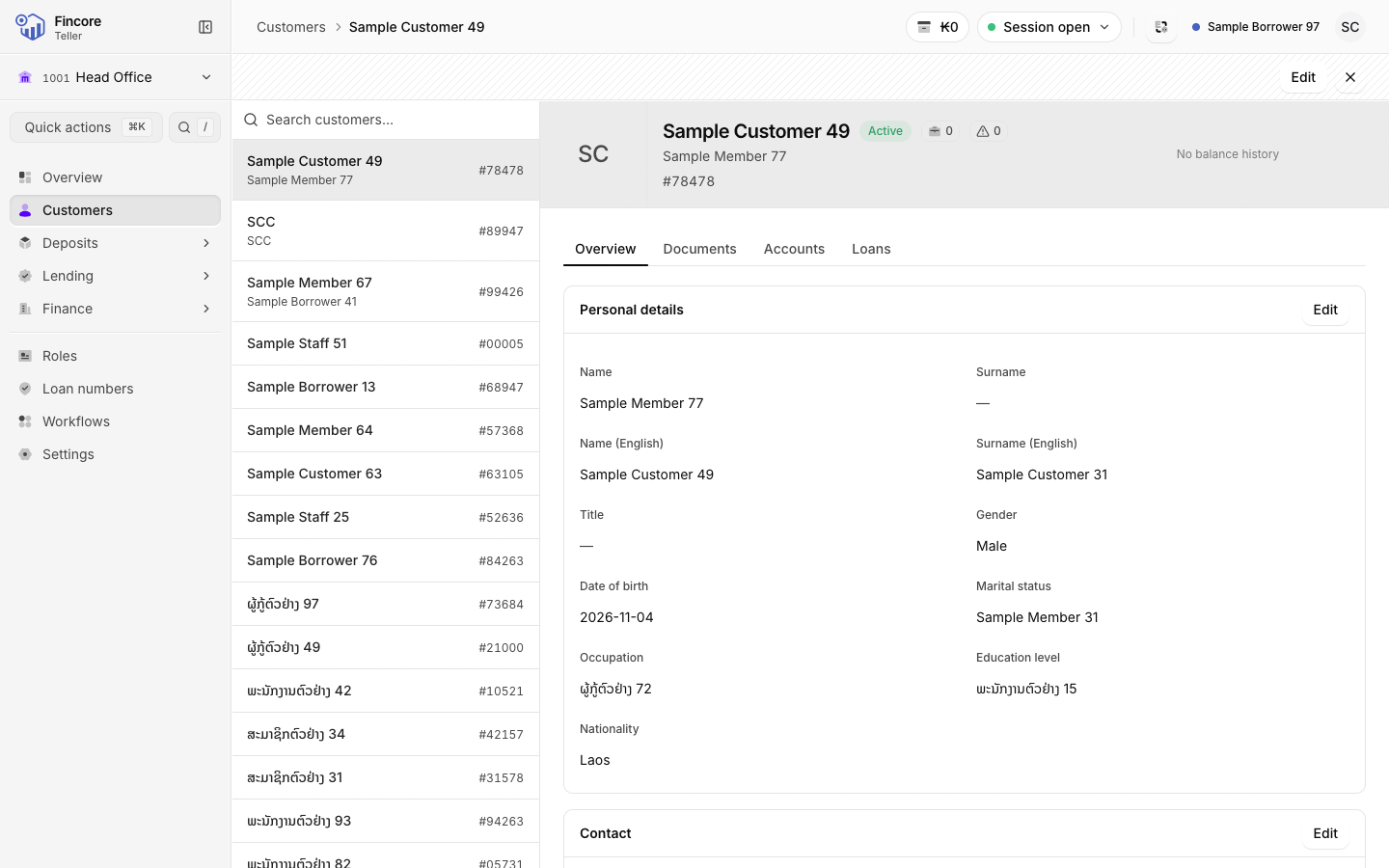
Select a customer's name. Their record opens beside the list, so you can move to the next customer without going back. The record has four tabs: Overview, Documents, Accounts and Loans. See The customer record.
Good to know
- The address bar keeps your search and filters. Copy the link to share the same list with a colleague.
- If the list shows No matching customers, check the branch chip first: the customer may belong to another branch.
- If a panel says the data could not be loaded, the core banking system did not answer. The screen never shows a zero or an empty list in its place. Wait a moment and reload the page.
Your bank may differ
Which columns appear, and whether the CID is required, depends on how your bank set up the app.