Roles and what you see
How your roles decide which screens and actions you have, why a screen may be missing, and who to ask for access.
What you can see and do in Teller Operations depends on your roles. Two people at the same branch can see different menus, and that is expected.
Two kinds of role
- Roles on your core banking account. Your bank sets these on your user in the core banking system. They decide the banking work you may do: see customers, open accounts, take deposits and withdrawals, approve or disburse loans, post journal entries, open and close your day. Ask your branch administrator to change them.
- Roles in this app. A small set of extra roles for setup work that the core banking system has no role for. A super admin at your bank grants them in Settings › Roles.
| App role | What it lets you do |
|---|---|
| Translator | Change the wording and translations shown on screen, and the Lao captions printed on BOL documents. |
| Admin | Everything a translator can do, and manage the loan number format. |
| Workflow admin | Design and publish the teller workflows, such as which checks a withdrawal needs. |
| Report admin | Change how BOL returns are mapped, upload the BOL XML file, upload and sign off a trial balance reconciliation, and set the fee and penalty accounts for GL movement. |
| Asset admin | Manage fixed-asset categories and their accounts. |
| Teller admin | See every user's journal entries and GL movement, and the summary for all tellers on the end-of-day report. Without it you see only the entries you posted yourself. |
| Super admin | Grant and remove app roles, reset branch PINs, manage the loan number format, and change the bank's settings: BOL applicability, the letterhead logo and the fixed-asset posting settings. It does not include the other roles. |
A person can hold several app roles at once.
See your own access
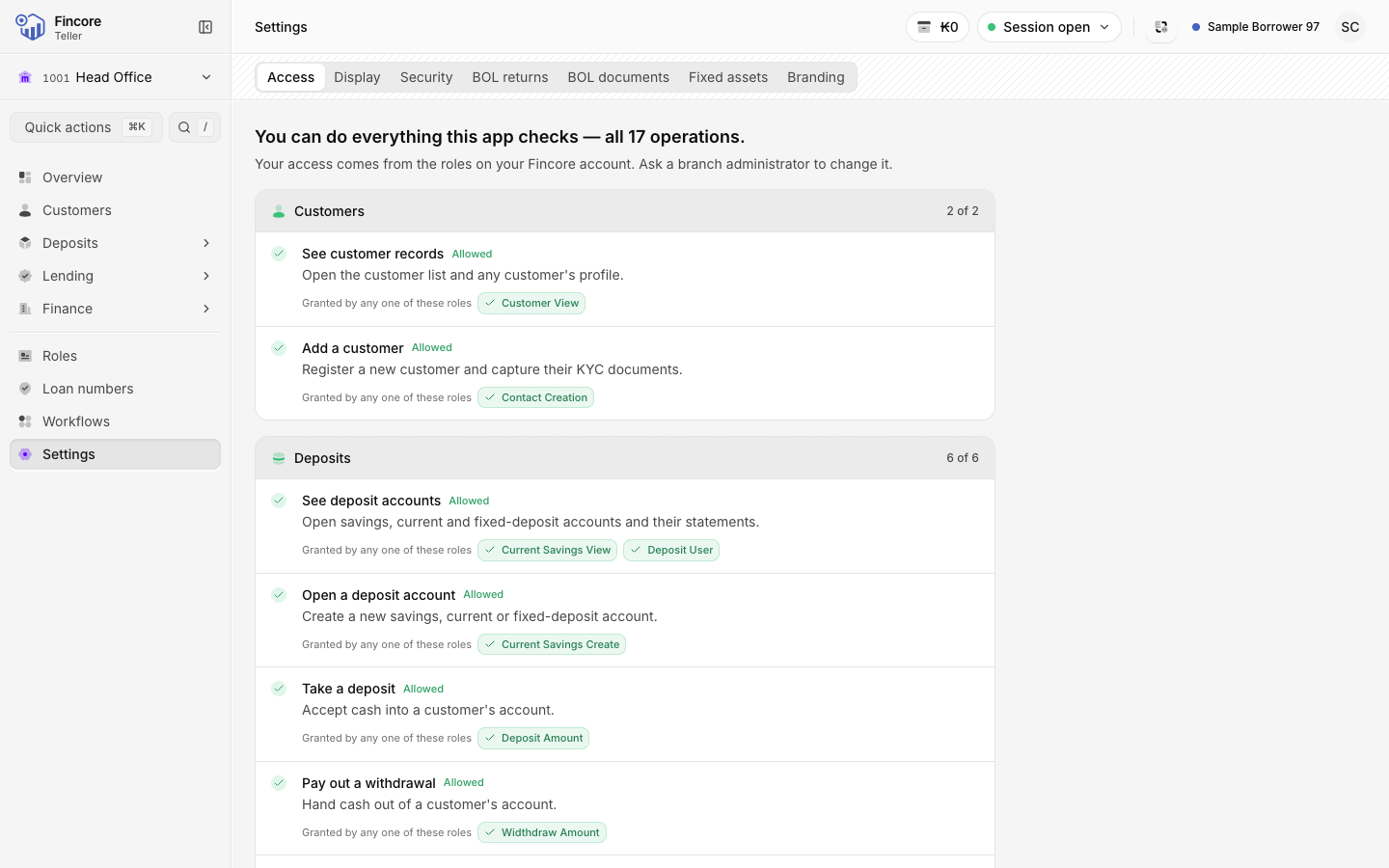
Read the summary
The top line says how many of the operations the app checks you may do. Below it, operations are grouped by area: Customers, Deposits, Lending, Finance and Cash session. Each one shows Allowed or Not allowed, and which roles grant it.
Check your roles
Your roles lists every role on your core banking account, split into Used by this app and Not used by this app.
Why a screen or button may be missing
- The sidebar hides screens your roles do not allow. A group such as Lending disappears when you may not open any screen inside it. The command palette hides the same actions.
- A page you open by link may say Not permitted. Your roles do not allow that page.
- Roles, Workflows and Loan numbers need an app role. Without it they are not in the sidebar.
- A green tick is not a promise. The core banking system checks every request again. If it refuses, you see its message, even where the app showed Allowed.
- If the app cannot check your roles, it shows every screen rather than hiding them, and the core banking system still decides. The Access tab then says it could not load your roles.
Who to ask
- For banking work you cannot do (a missing screen, Not allowed on the Access tab): your branch administrator.
- For an app role, or a branch PIN reset: a super admin at your bank.
When you ask, say which screen or action you need. Your supervisor can compare with a colleague's Access tab.
Your bank may differ
Some screens appear only when your bank has turned the feature on, whatever your roles. Monitoring is one example.