Choose your working branch
Switch the branch you work in, protect the switch with a 4-digit PIN, and see which lists follow it.
Your working branch is the branch the app treats as yours. Lists open filtered to it, and a new customer starts in it. Switching to another branch needs your 4-digit branch PIN every time.
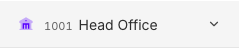
What the branch row shows
The row sits at the top of the sidebar, under the bank's name. It looks different depending on your account:
- A branch name with a small arrow means you may work in more than one branch. Select it to switch.
- A branch name with no arrow means you work in one branch only. There is nothing to switch.
- A branch name with a warning sign means switching is paused. Point at the row to read why. You keep working in the branch you are in.
- No row at all means your account has no branch the app can show. Ask your supervisor.
Switch to another branch
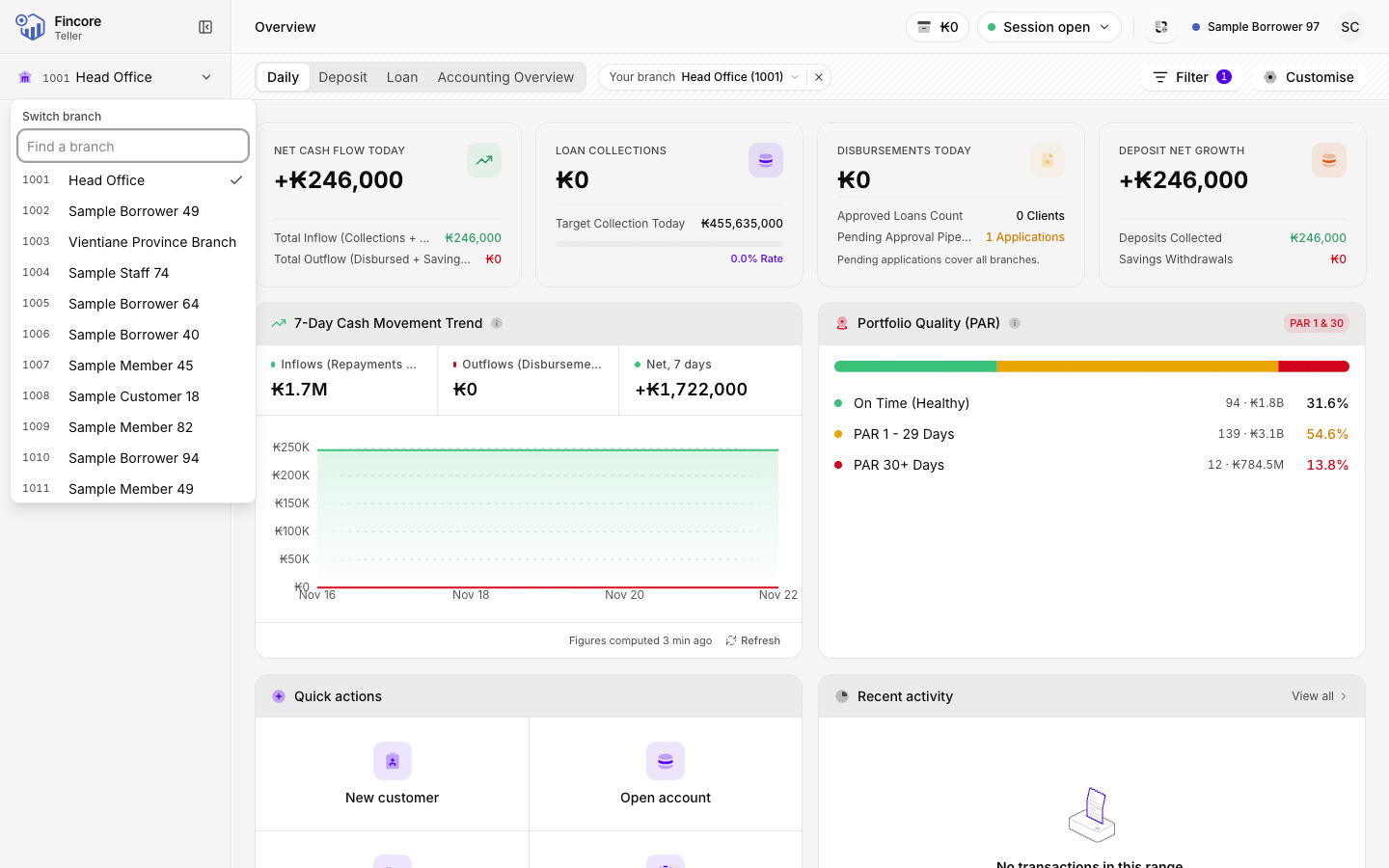
Open the branch menu
Select the branch row. The Switch branch menu lists every branch you may work in. Your current branch has a tick. When there are many branches, type part of a name in Find a branch to shorten the list.
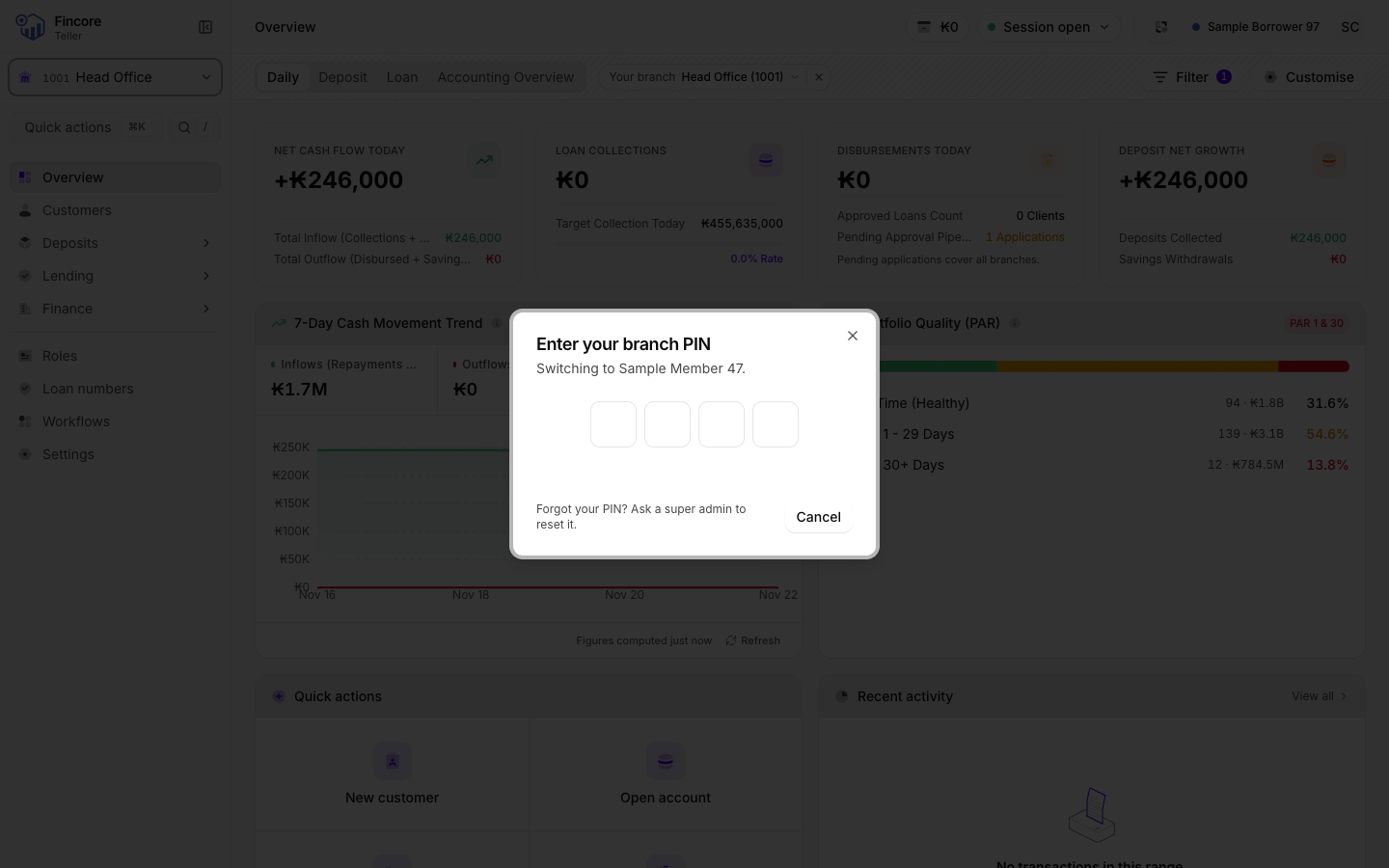
Enter your PIN
Type your 4 digits. The dialog checks them as soon as the fourth digit is in, so there is no button to press. If you have never set a PIN, the dialog shows Create a branch PIN first: choose 4 digits, then enter them again under Confirm your PIN. The switch then completes.
Check the new branch
A message confirms the branch you are now working in, and the branch row shows its name. Any other tab you have open on the app changes branch too and tells you so.
Set or change your PIN
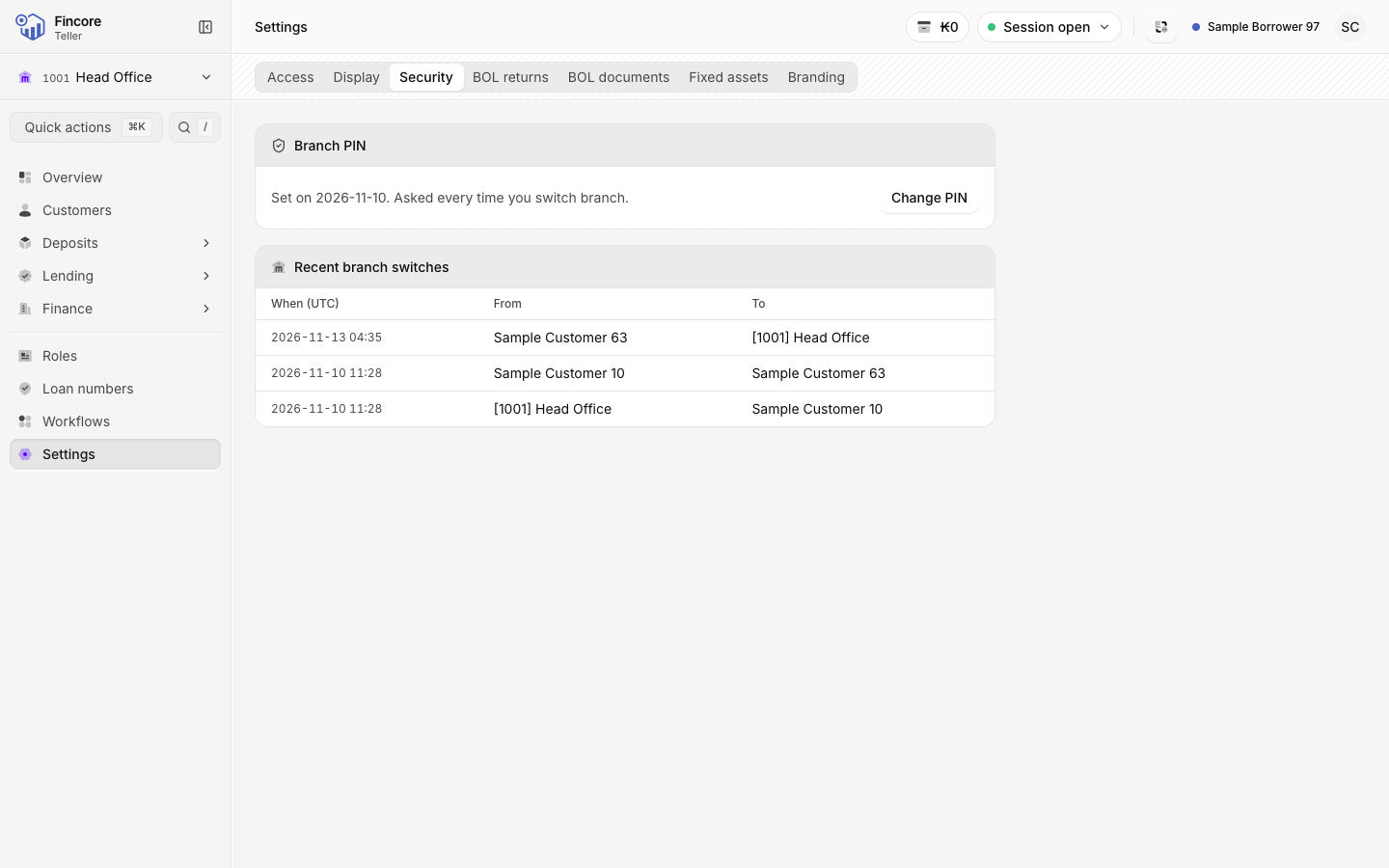
Open Settings › Security. The Branch PIN panel shows whether your PIN is set.
- Select Set PIN or Change PIN.
- To change a PIN, enter Current PIN first.
- Enter New PIN and Confirm new PIN, then select Save PIN.
If you work in one branch only, or switching is locked or paused, there is no button to set or change the PIN.
The same tab shows Recent branch switches: your last switches, with the branches you moved from and to. The When (UTC) column is in UTC, which is 7 hours behind Lao time.
Which lists follow your branch
- Customers, the list view of Loan Portfolio and the Overview open on your working branch. A Your branch chip in the header says so. Remove the chip to see every branch.
- Savings, Current, Fixed Deposits and Applications cannot be filtered by branch. They show an All branches marker instead, and list every branch whichever one you work in.
- A record page, such as one customer or one loan, always opens in full. The working branch never hides a record.
- An export follows the chips. If you removed the branch chip, the file covers every branch.
Good to know
- Choose 4 digits that are hard to guess. The app refuses repeated digits, such as 1111, and straight runs, such as 1234.
- After 5 wrong PINs in a row, switching is locked for 15 minutes. A correct PIN during the lock does not unlock it. Wait, then try again.
- Forgot your PIN? Ask a super admin to reset it. You then create a new one the next time you switch.
- When switching is paused, the app never moves you silently. You stay in your current branch and can keep working.
Your bank may differ
Whether the journal list also opens on your working branch depends on how your bank is set up.