Find your way around
The sidebar, the header and the shortcuts you use on every screen.
Every screen in Teller Operations has the same frame. Once you know it, you know where to look on any page.
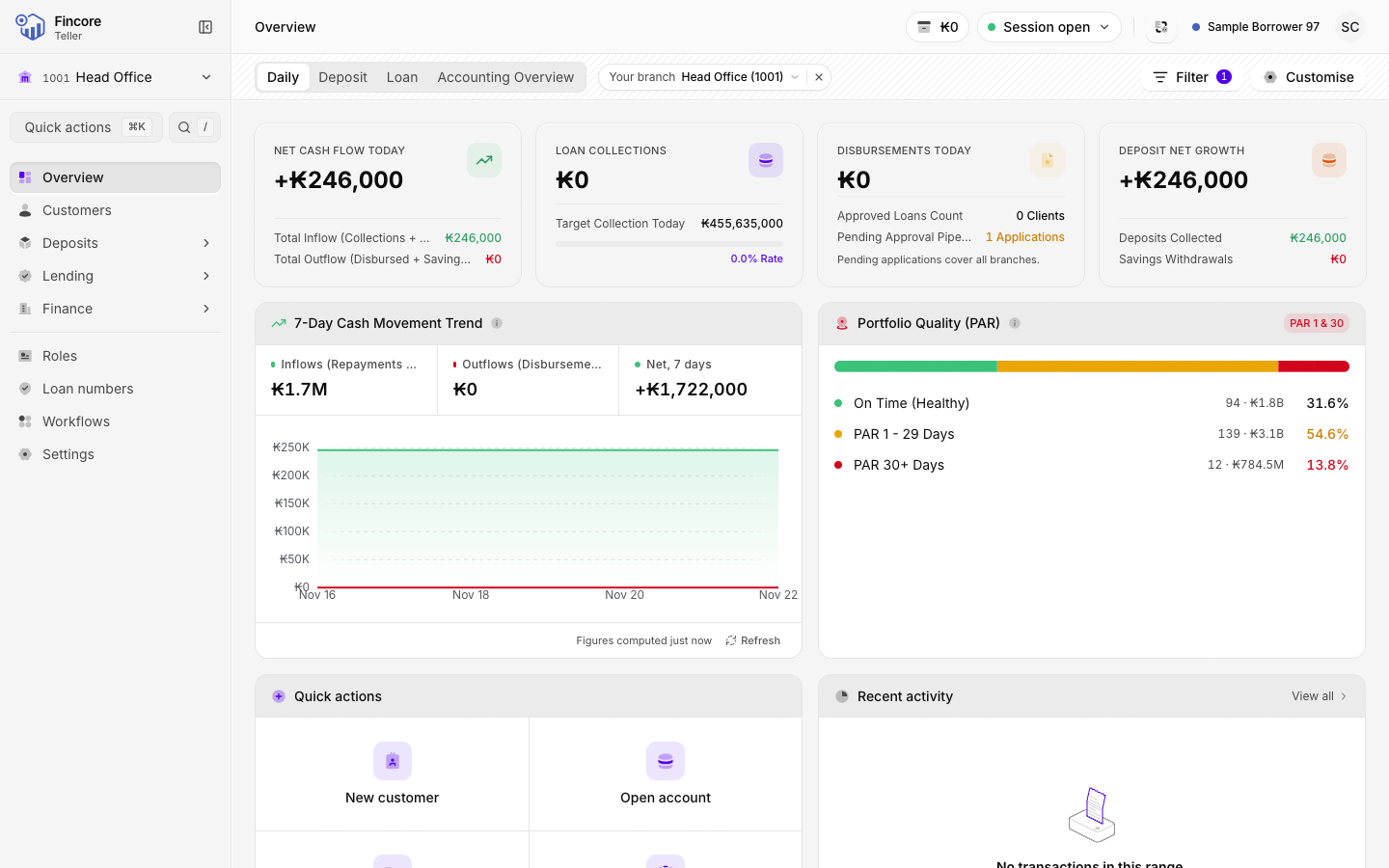
The sidebar
The sidebar on the left lists every place you can go. Deposits, Lending and Finance are groups: select one to open it and see the screens inside.
- Press ⌘ B (Ctrl B on Windows) to fold the sidebar into a narrow strip of icons. Press it again to open it.
- The row at the top of the sidebar shows your working branch. Lists open filtered to this branch. See Choose your working branch.
- You only see the screens your role allows. If a colleague sees a screen you do not, ask your supervisor about your roles.
The header
The header across the top has two rows.
- The top row shows where you are on the left (for example Customers › a customer's name). On the right are your teller session and your account menu.
- The second row holds the controls for the current page: tabs on the left, then search, Filter, and the page's main button on the far right.
Find anything quickly
Select Quick actions or press ⌘ K to open the command palette. Type part of a task, such as "savings" or "withdraw", and press ↵. The palette only lists actions your role allows.
Language and theme
Open Settings › Display. Under Language choose English or ລາວ, and under Theme choose light, dark or the system setting. The app first signs you in using the language set on your Fincore user. Labels the app has not yet translated show in English.