Close your session
Count your drawer blind at the end of the day, reconcile it note by note, and close the session.
At the end of the day you count the cash in your tray, compare it with what the drawer should hold, and close your session. The amount you count becomes your closing balance.
Before you start
- Finish every cash transaction for the day.
- Sort the cash in your tray by note.
Start the close
Go to the session screen: open the session pill in the top bar and select Close session, or select Session & end-of-day count in the drawer panel. Then select Close Session.
Count your drawer
The Close cash drawer dialog opens on an empty grid. Count every note in the tray and type how many of each you have.
The expected figures are hidden on purpose while you count. A count made with the expected total on screen tends to agree with it, and the point of the count is to find the day when the tray and the record differ.
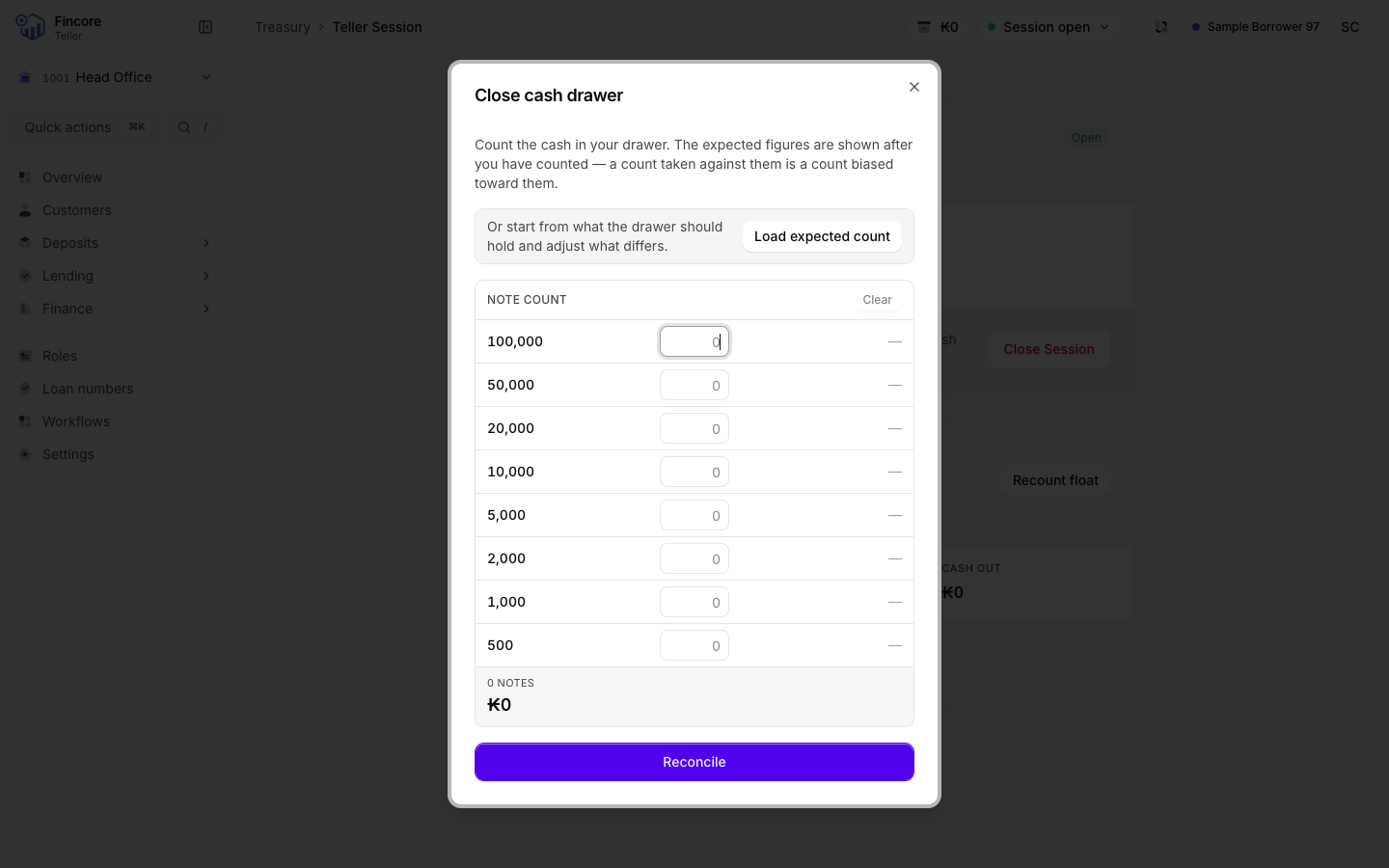
If you have a lot of notes, you can select Load expected count to fill the grid with what the drawer should hold, and then change the rows that differ from your tray. Only do this if you then check every row against the cash.
Reconcile
Select Reconcile. The dialog now shows Expected and Counted, the difference, and a table comparing each note. The result is one of:
- Balanced: the tray matches the record, note for note.
- Out of balance: the total differs. The difference is shown with its sign: plus when you have more cash than expected.
- Balances on value, not on notes: the total is right but the notes are not. Two mistakes today cancelled each other out, for example a payout made with different notes from the ones recorded. Check the rows in the table.
- Loaded, not counted: you loaded the expected count and changed nothing, so it matches by construction. It does not confirm that the cash is in the tray.
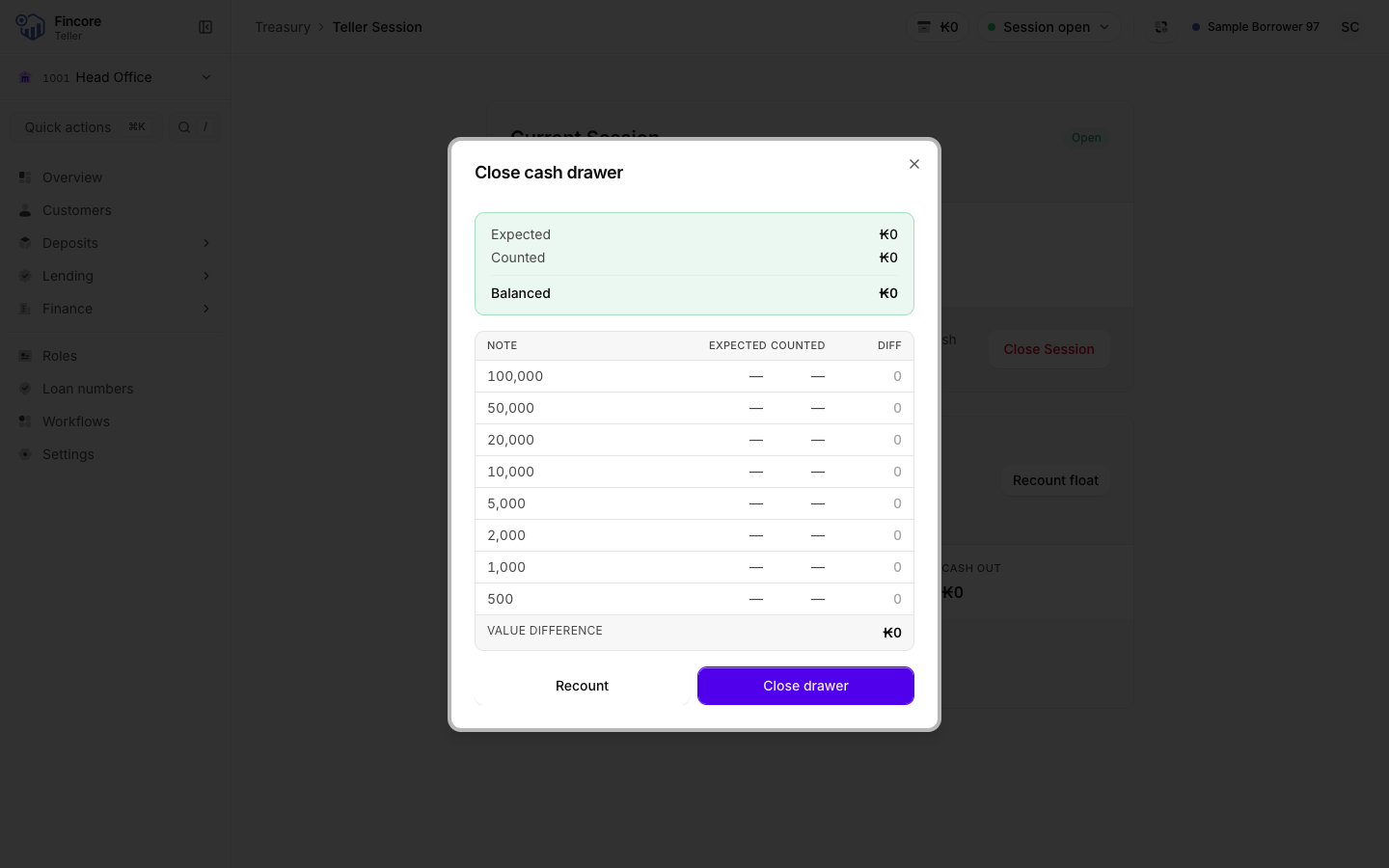
To count again, select Recount.
Close the session
Select the button at the bottom right. Its name tells you what kind of close you are making:
- Close drawer when the drawer balances.
- Close with discrepancy when it is out of balance, or balances on value only.
- Close without counting when the count was loaded and not changed.
The app never stops you from closing. A close with a discrepancy is recorded with the amount you counted. Tell your supervisor about any difference.
After the close, the session screen shows Session closed with the Opening Balance and Closing Balance.
Good to know
- A closed session cannot be reopened. Your next session starts on the next business day.
- If your opening float was never counted by note, there is nothing to compare your count against. The reconcile step says so and shows only your counted total. That total is recorded as the closing balance, and any difference is reconciled in the core banking system.
- After the close, the drawer record for the day is cleared.
If something goes wrong
If the close fails, the dialog shows the reason from the core banking system and your session stays open. Read the message, then select Recount or try the close again.