Trial balance and reconciliation
Read the monthly F01 trial balance, export the official document, and reconcile it against your bank's own trial balance.
Trial balance is the Bank of Lao PDR monthly trial-balance return (F01), read on screen with the official document one click away. TB reconciliation puts your bank's own trial-balance sheet beside it, account by account, and records a two-person sign-off.
Read the trial balance
Open the report
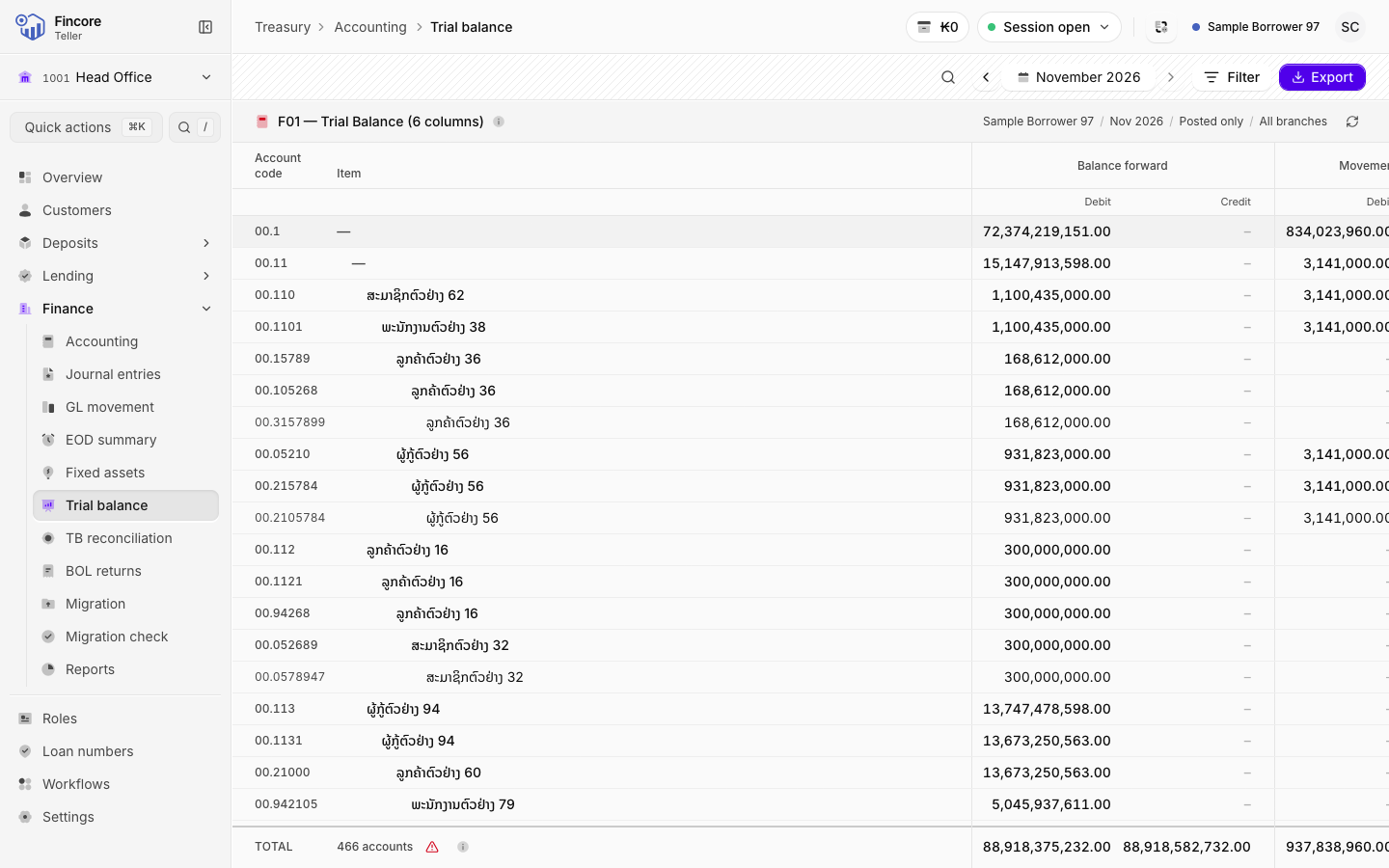
Under Finance, select Trial balance. The screen shows Building the trial balance… while the report is computed.
The trial balance can take up to two minutes to compute. Leaving the page cancels it. The figures are kept for a while afterwards, so the next visit is quick.
Choose the month
The report always covers one month. Use the arrows beside the month to step to the Previous month or the Next month, or select the month itself to pick another month or year.
Filter
Select Filter. Under Branch choose one branch, or leave All branches. Under Entries, Posted only is the statutory basis. All entries adds entries that are not posted yet, for checking month-end adjustments.
Read the figures
Each account shows three pairs of debit and credit columns: Balance forward, Movement in the month and Closing balance. The last row is the Total. Search by account code or name to find one account.
Export the official document
Select Export and choose Excel (.xlsx) or PDF. This is the official BOL document, rendered by the core banking system. It takes a minute or two: the button shows the time elapsed and the file saves on its own.
Reconcile against your bank's trial balance
Open reconciliation
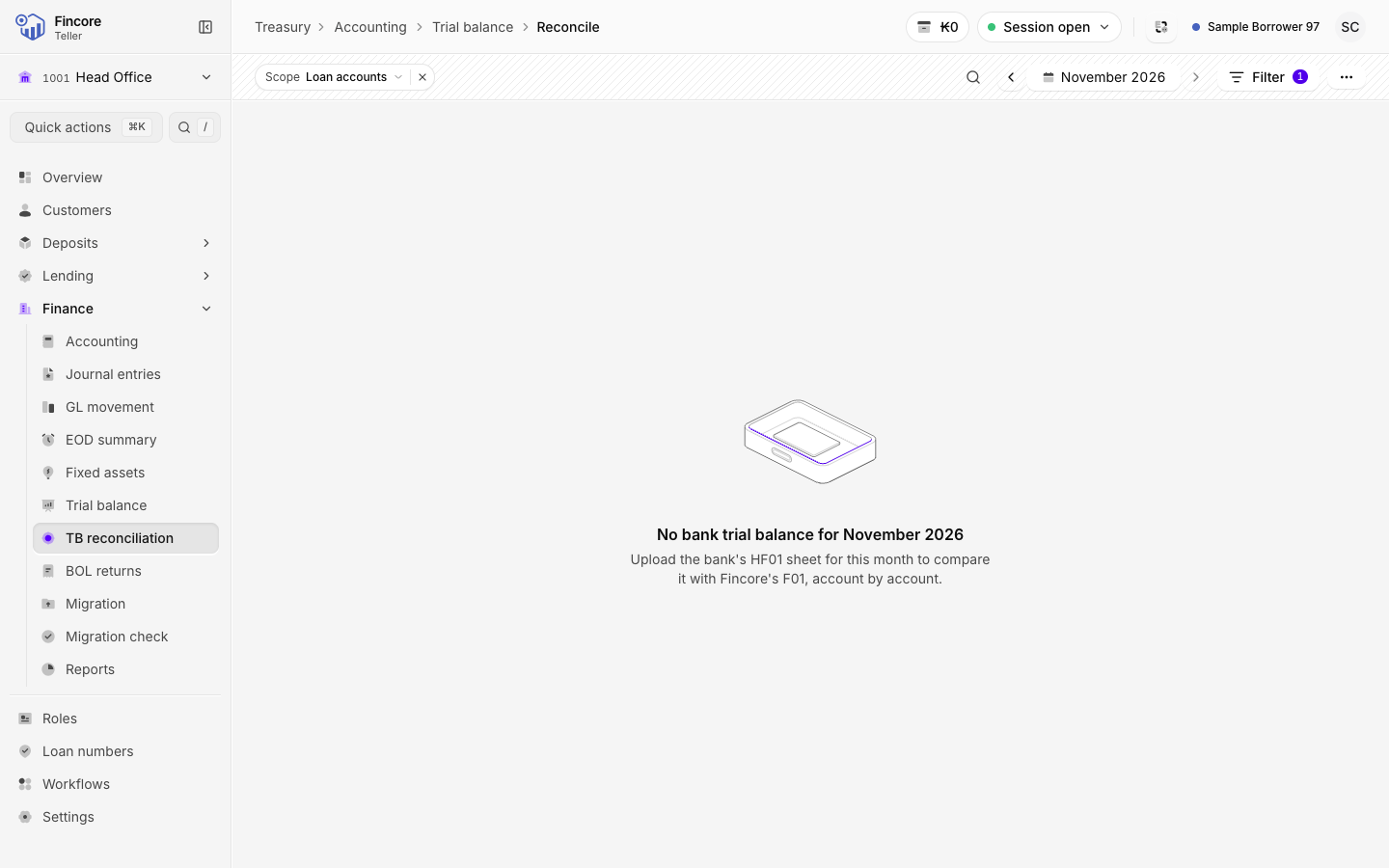
Select TB reconciliation and choose the month. The screen opens on Loan accounts: remove that chip, or choose All accounts under Filter, to compare every account. If no bank sheet is uploaded for that month, the screen says so.
Upload the bank's sheet
Open the actions menu at the right of the header and select Upload TB. Choose the bank's HF01 sheet as .xlsx or .csv. The sheet is checked before it is saved: its period must match the month and its institution code must match your bank. Then select Upload.
Check that each side proves itself
The two cards at the top check each side on its own: every account's opening plus debit minus credit must equal closing. If the bank's sheet does not add up, the screen says This sheet does not prove itself. Correct the sheet and upload it again, or select Compare anyway.
Find the differences
The counts above the table show how many accounts are Matched, Opening differs, Month differs, Both differ, Fincore only or Bank only. Select a count to show only those accounts. Each row shows the difference, bank minus the core banking system, to the cent.
Explain an account
Select a row to open the account. It shows both sides' figures and the month's entries on that account. Type why the two sides differ under Add an explanation and select Save. The row then shows Explained.
Sign off the month
From the actions menu, select Sign off. The dialog shows who has signed so far. One person selects Sign as preparer, then a different person selects Sign as reviewer. The dialog then shows both names under Prepared by and Reviewed by. With both, the month reads Closed.
Print the workpaper
From the actions menu, select Export to Excel or Print / PDF. Both are available once the comparison is on screen.
Good to know
- The screen lists only the accounts that carry a figure. The exported document is the complete statutory form, zeros included, so it has many more rows.
- If the report shows debits and credits that do not agree, that is the core banking system's own figure. The screen reports it as it is and never corrects it.
- Uploading a new sheet for a month replaces the old one and clears its sign-offs. The screen asks you to confirm with Replace and clear sign-offs.
- Under Compare, Closing balance only judges each account on its closing balance alone. Use it for a month that holds a cut-over entry.
Your bank may differ
Uploading, explanations and sign-off need the Report admin role at your bank. Without it you can read the comparison but not change it. Matching a sheet needs your bank's BOL code to be set up. See Roles.