Journal entries and bulk entries
Read the posted ledger entries for a period, and post a batch of journal entries in one go.
Journal entries lists every entry posted to the general ledger, newest first. When you have many adjustments to book, use the bulk entry screen to key or import them all and post them as one batch.
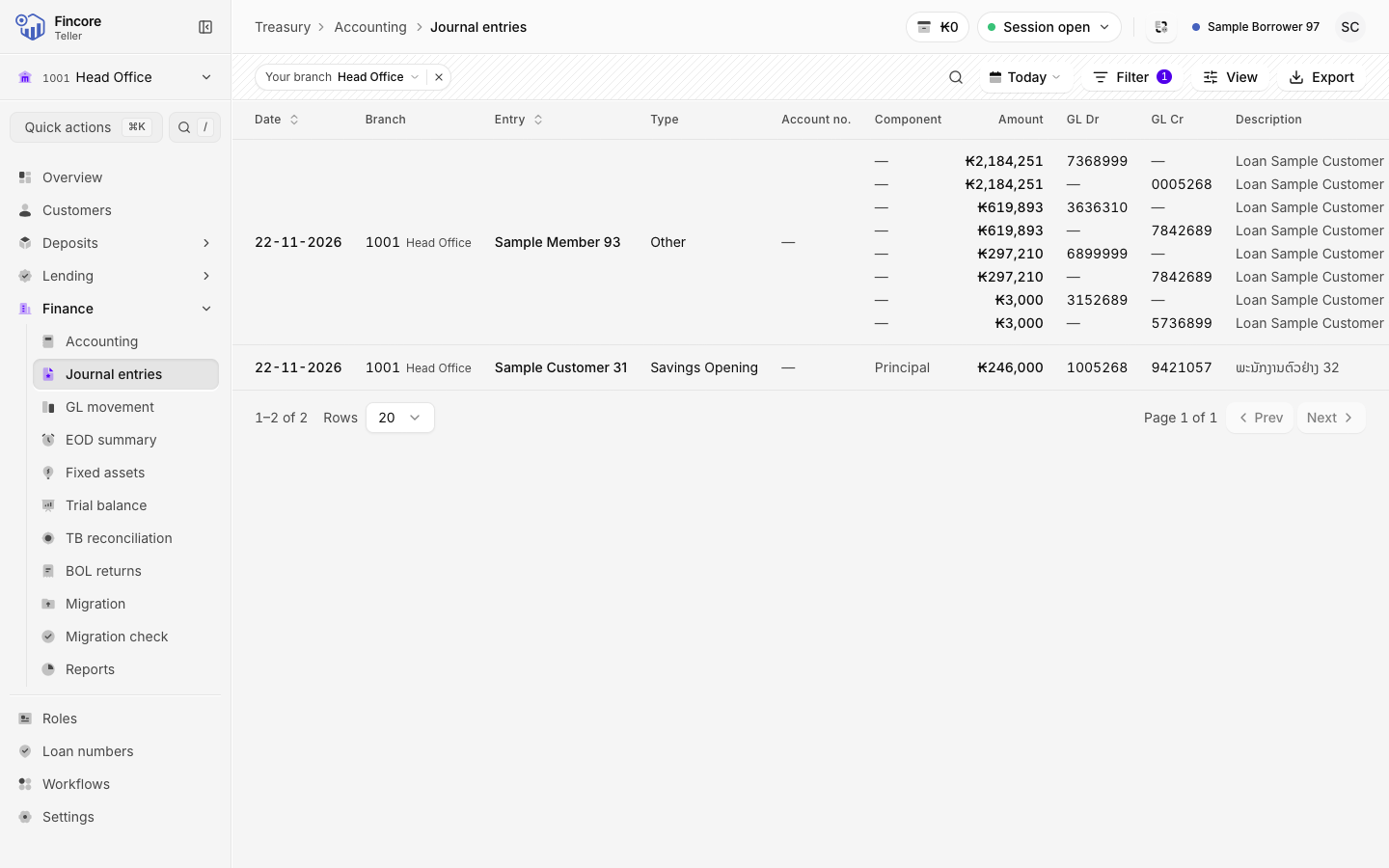
Read the journal entries
Open the list
Under Finance in the sidebar, select Journal entries. The list opens on Today and on your working branch, so you see today's entries first.
Choose the period
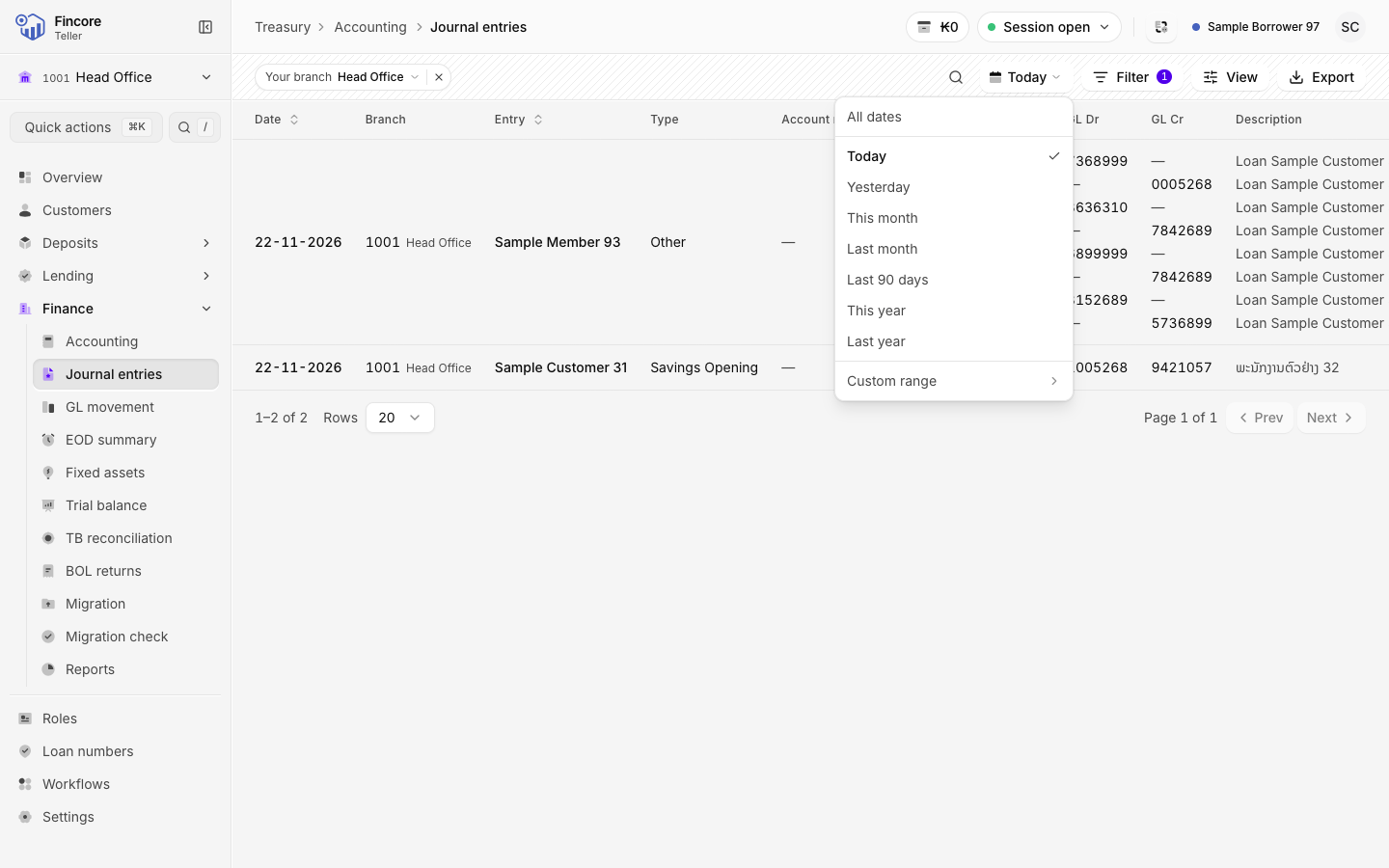
Select the period button in the header. Pick a preset such as Yesterday, This month or Last month, or select Custom range, pick a start and an end date, then Apply. Select All dates to see the whole ledger.
Search and filter
Search by Entry number or reference. Select Filter to narrow the list by Type, Journal, Branch or Posted by. Each active filter shows as a chip in the header.
Open an entry
Select a row to see the entry's lines: each account with its Debit and Credit, and the Totals. Select All entries to return to the list.
Export the list
Select Export, tick the fields you want, and download the file. The file holds the entries for the same period and filters as the screen, one row per line of each entry.
Post a batch of entries
Open bulk entry
Open Accounting, stay on the Post journal tab, and select Bulk entry. You can also find it from the command palette.
Set the batch defaults
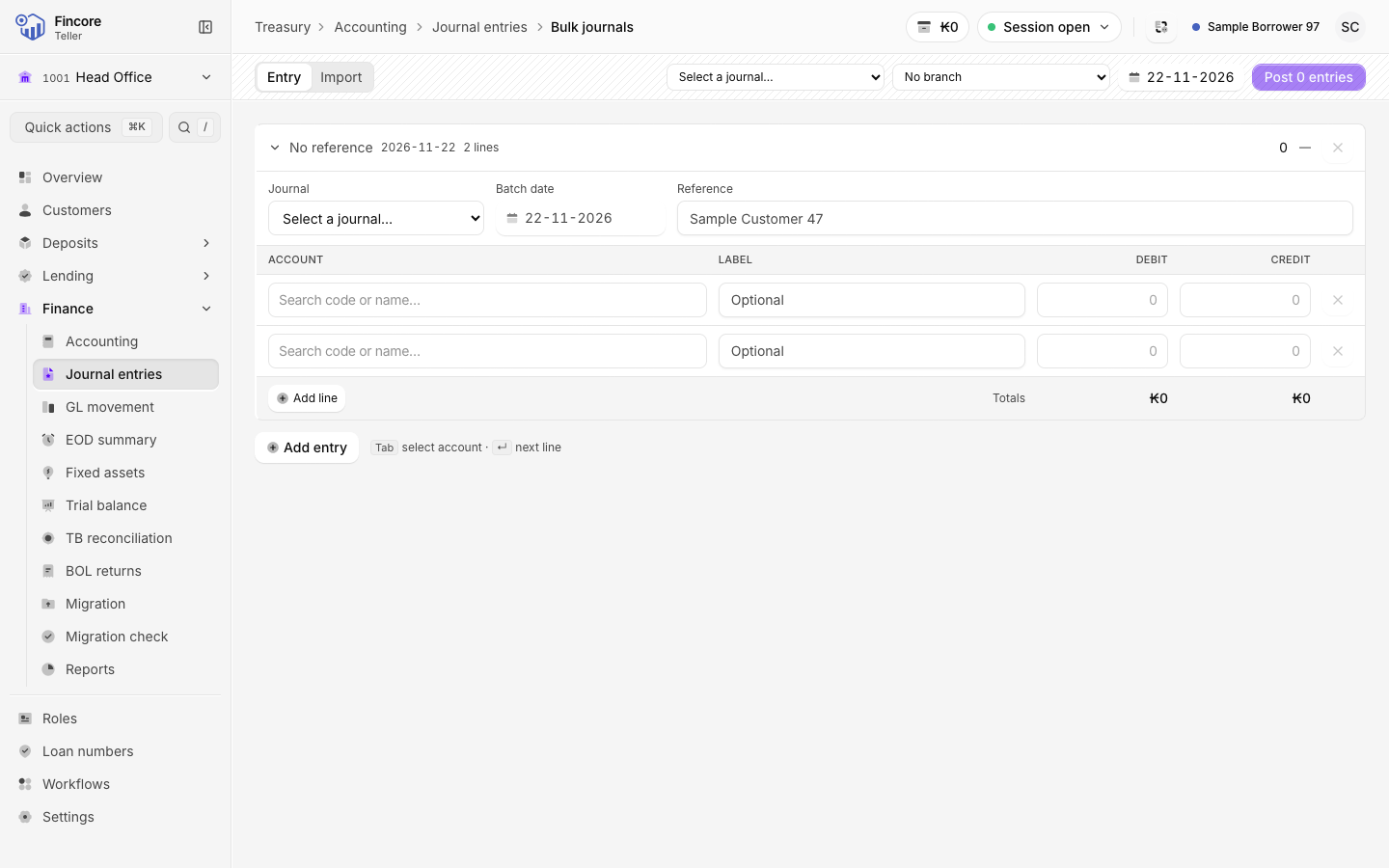
In the header, choose the Batch journal, the Batch branch and the Batch date. New entries take these values. An entry you have already changed keeps its own values. The date cannot be in the future. A past date shows Backdated.
Key each entry
In each card, type the Reference, then add the lines: an account, an optional Label, and a Debit or a Credit, never both. Select Add line for more lines and Add entry for the next entry. The card shows Balanced when debits equal credits, or says by how much it is out.
Or import a sheet
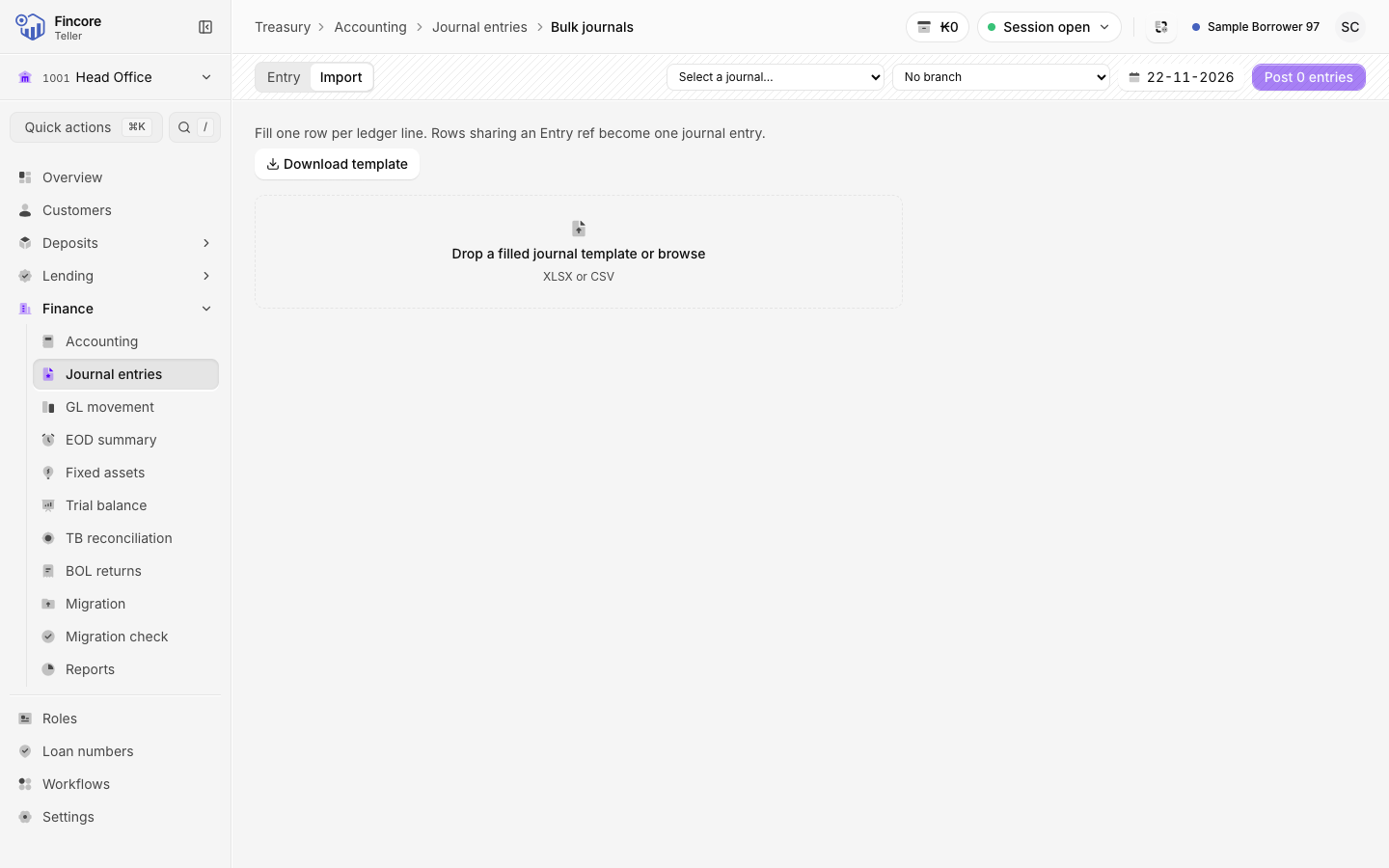
On the Import tab, select Download template, fill one row per ledger line, and upload the file. Rows with the same entry reference become one entry. The entries land in the Entry tab, where you check and correct them before posting.
Post the batch
When every card is balanced and free of errors, select Post … entries at the right of the header. Entries post one at a time and the screen shows the progress. Keep the page open until the batch finishes.
Download the report
When the batch finishes, select Download report. The report lists every line with the entry number the core banking system gave it. If some entries failed, read the reason on the card, fix it and select Retry failed only. Select New batch to start again.
Good to know
- A card with errors stays open and the post button stays off until you fix it. The card lists what is wrong, for example No account carries that code or Debits and credits must agree.
- If two entries book the same amounts to the same accounts on the same date, the screen asks you to confirm with These are separate entries — post both. Check you have not keyed the same adjustment twice.
- A posted entry cannot be edited or deleted from this app. Check each card before you post.
- A journal entry moves no cash in your drawer.
Your bank may differ
Without the Teller admin role you see only the entries you posted yourself. The Branch and Posted by filters, and the working-branch default, appear only where your bank's core banking system supports them. Posting entries needs the posting permission. See Roles.