Fixed assets and depreciation
Keep the fixed asset register, read the depreciation schedule and post each period's depreciation.
Fixed assets holds your bank's asset register, works out straight-line depreciation for each asset, and posts each period's charge to the ledger as a journal entry. The ledger stays the authority for balances. The register explains the depreciation accounts.
Find your way around
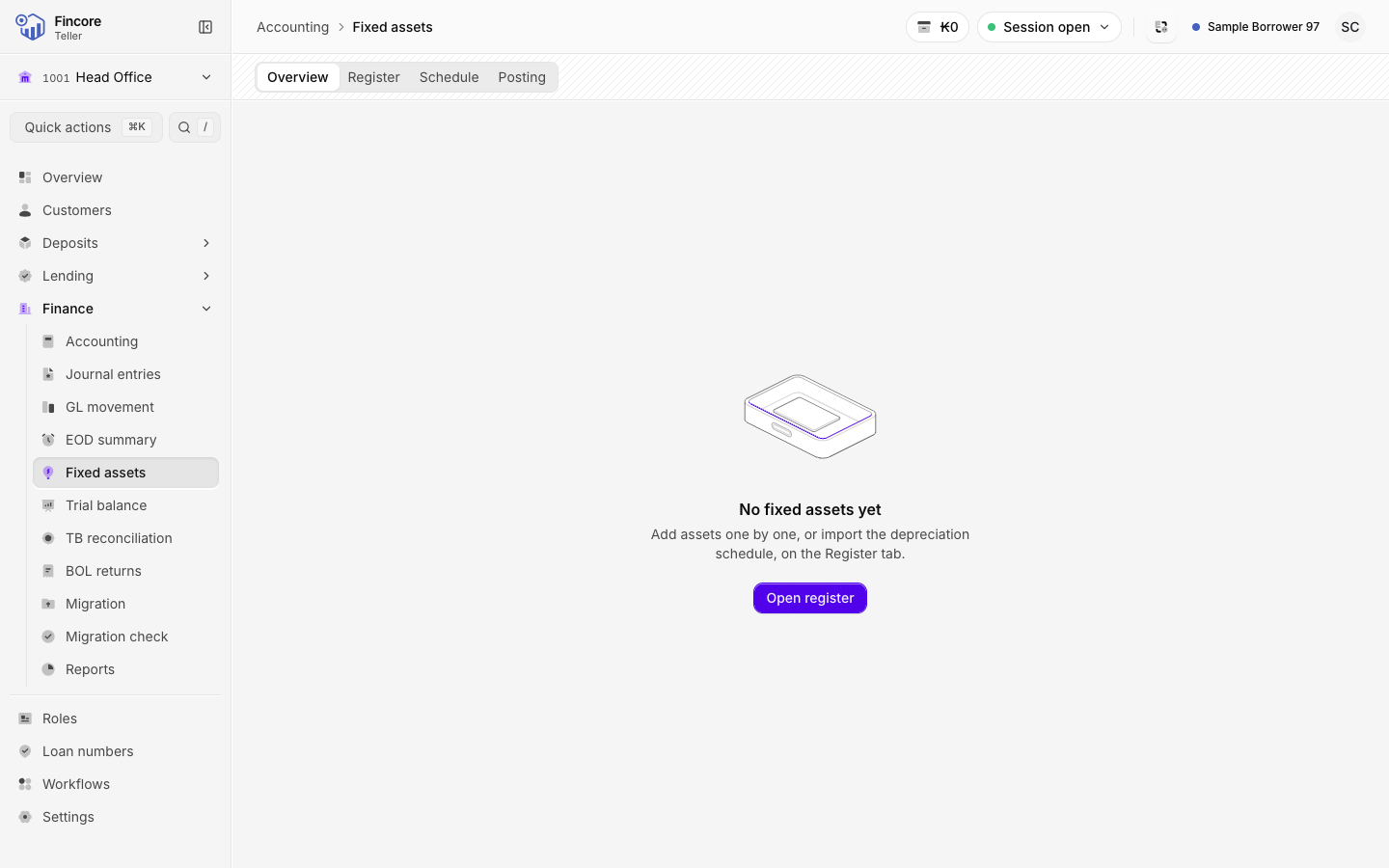
The screen has four tabs:
- Overview: total cost, accumulated depreciation, net book value, this month's charge, and charts of what is left to depreciate.
- Register: every asset, with search and filters.
- Schedule: the depreciation schedule as of a month, ready to print.
- Posting: which periods are posted, the next one due, and the register against the trial balance.
Add an asset
Say how it was acquired
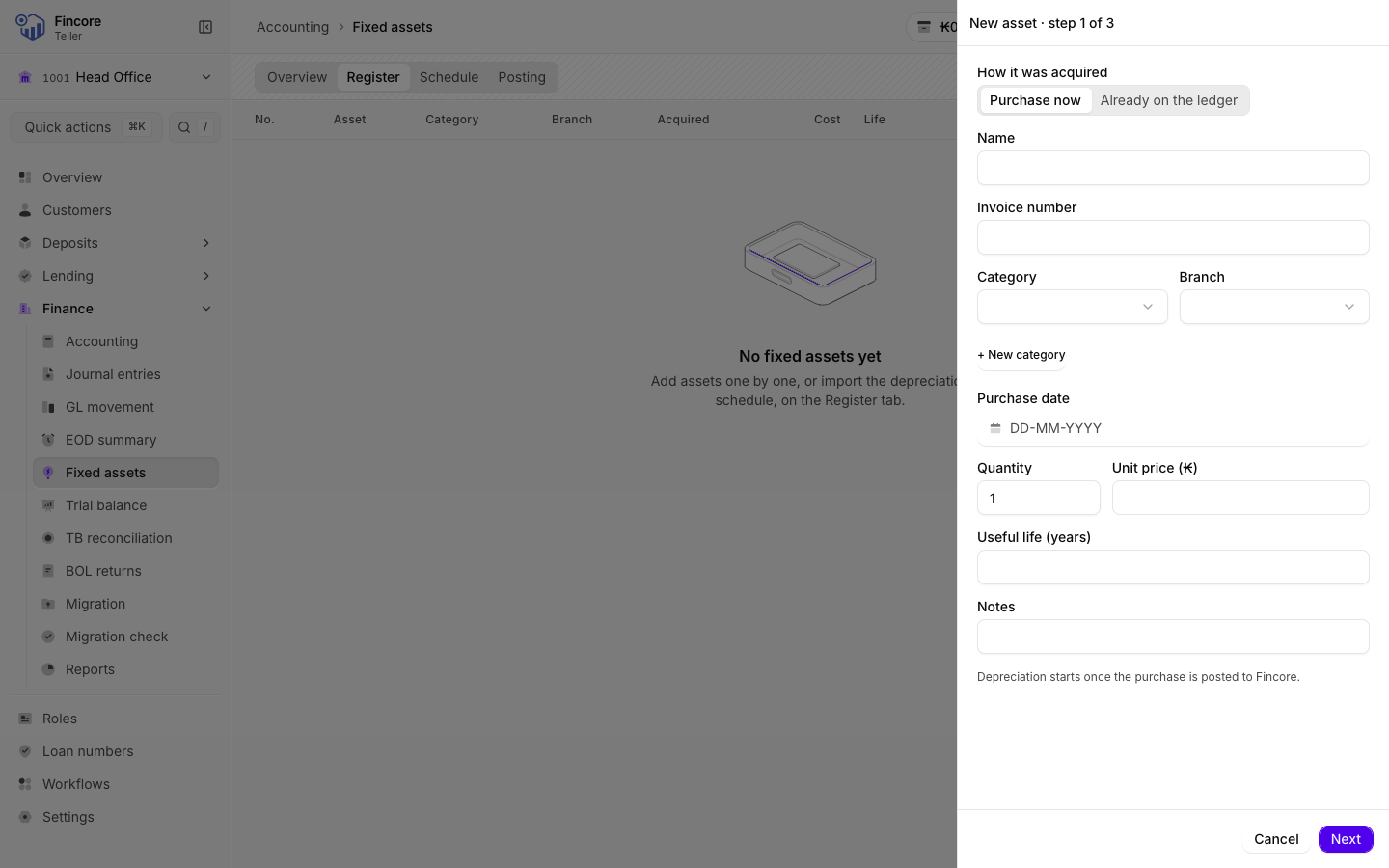
Under How it was acquired, choose Purchase now for a new purchase. Choose Already on the ledger only for an asset whose cost is already in the ledger: nothing is posted for it.
Fill in the asset
Enter the Name, Category, Branch, the date, Quantity, Unit price (₭) and Useful life (years). The form shows the Monthly charge and when the asset is Fully depreciated. For an asset already on the ledger, select Register asset and you are done.
Choose how it was paid
For a purchase, select Next. Under Paid from, choose Vault or Bank. For a bank payment, choose the account and add the bank reference if you have one.
Review and post the purchase
Select Review to see the journal lines, then Post purchase … to book the purchase. Depreciation starts once the purchase is posted.
Post the period's depreciation
Open the Posting tab
Select Posting. It shows the periods already posted and the next one due. A period can be posted only once it has closed.
Check the journal
Select Post … at the right of the header. It names the next period. The dialog shows the Value date, Journal, Branch, Reference and the debit and credit for each category.
Post it
Select Post to Fincore. The period then shows the entry number the core banking system gave it.
Compare with the ledger
Under Register vs ledger, each depreciation account shows the register's figure, the trial balance's figure and the Difference. A difference never blocks a posting.
Print the schedule
On the Schedule tab, choose the month, then select Excel or Print / PDF.
Good to know
- Depreciation is straight line with no residual value, in whole kip. The month an asset is acquired counts as a full month.
- To retire an asset, open it on the Register tab and select Dispose. Depreciation stops after the disposal month. No journal is posted, so book the disposal journal yourself.
- To bring in an existing register, select Import on the Register tab and upload the depreciation schedule as an .xlsx workbook.
- If the answer from the core banking system does not arrive, the period shows as unconfirmed. Select Check Fincore before posting again, so the period is not booked twice.
- The Posting tab reads the trial balance, so it can take up to two minutes to load.
Your bank may differ
Adding assets and posting need the posting permission. Adding a category needs the Asset admin role. A Super admin sets the posting rules on the Fixed assets tab of Settings: the Posting frequency (Monthly or Annual), the Go-live month, after which posting starts, and the Posting journal. Until the go-live month is set, nothing can be posted. See Roles.