Post a batch of transactions
Key in or import many savings and current deposits, withdrawals and transfers, review them on one screen and post them together.
Use a batch when you have a sheet of transactions to record, such as a branch's counter sheet or yesterday's paperwork. Every row is checked before anything is posted, and rows post one at a time.
Before you start
- Open your teller session. You can prepare a batch without one, but you cannot post it.
- The cash for these transactions was counted elsewhere. A batch does not move anything in your cash drawer.
Open the batch screen
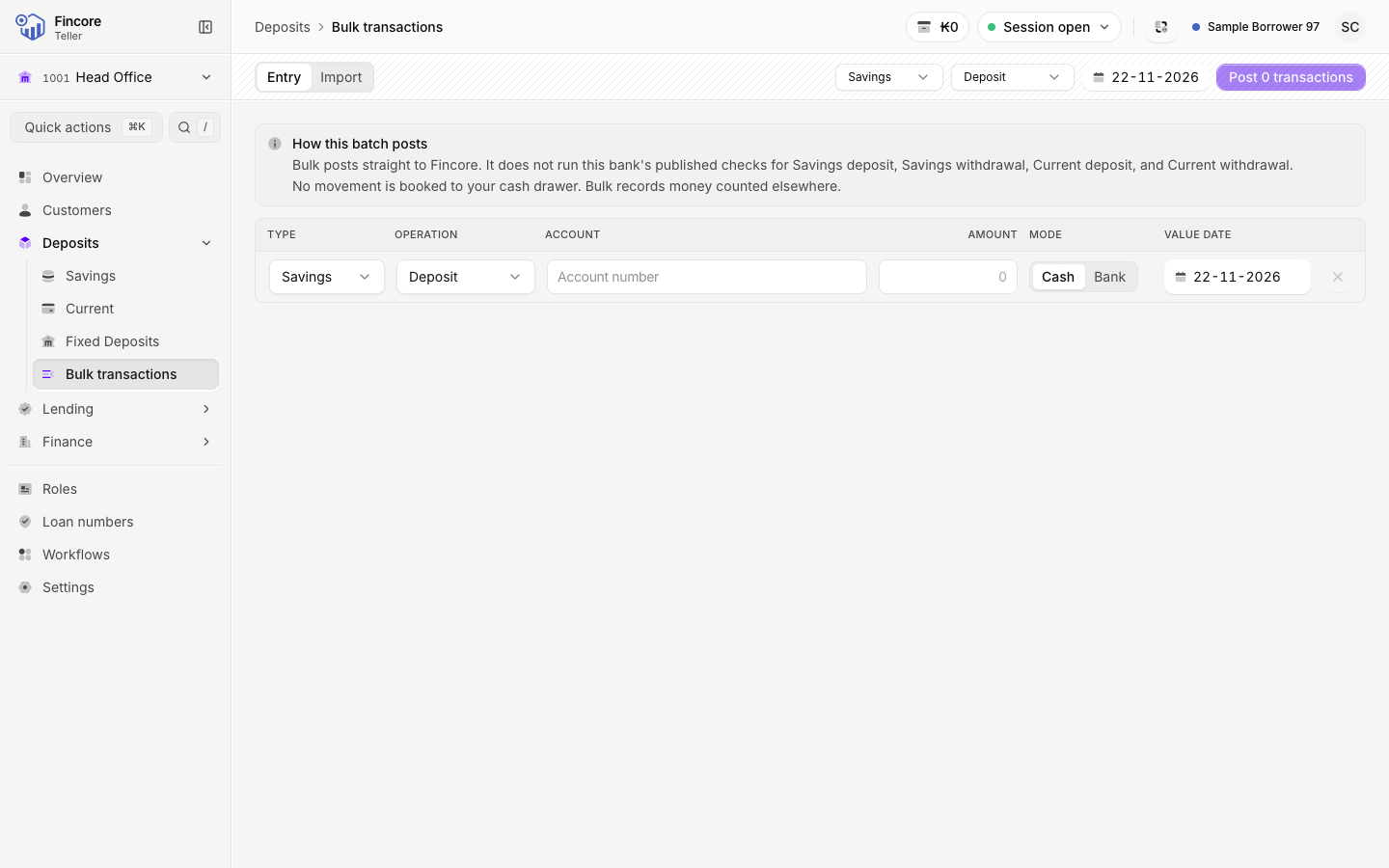
Under Deposits, select Bulk transactions. The screen opens on the Entry tab with one blank row.
Set the batch defaults
In the header, choose the Account type, the Operation and the Value date. New rows start with these values. You can still change them on any row, so one batch can mix savings and current accounts, and deposits, withdrawals and transfers.
A value date in the past is marked Backdated. A date in the future is not allowed.
Enter the rows
For each transaction, fill in the row: Type, Operation, Account and Amount. As you type an account number, the row shows the holder and balance.
- For a deposit or withdrawal, choose the Mode. For a bank payment, also choose the Bank account. You can add the Bank reference.
- For a transfer, type the To account. A transfer always posts today, whatever the value date.
A new blank row appears as you fill in the last one.
Import a sheet instead
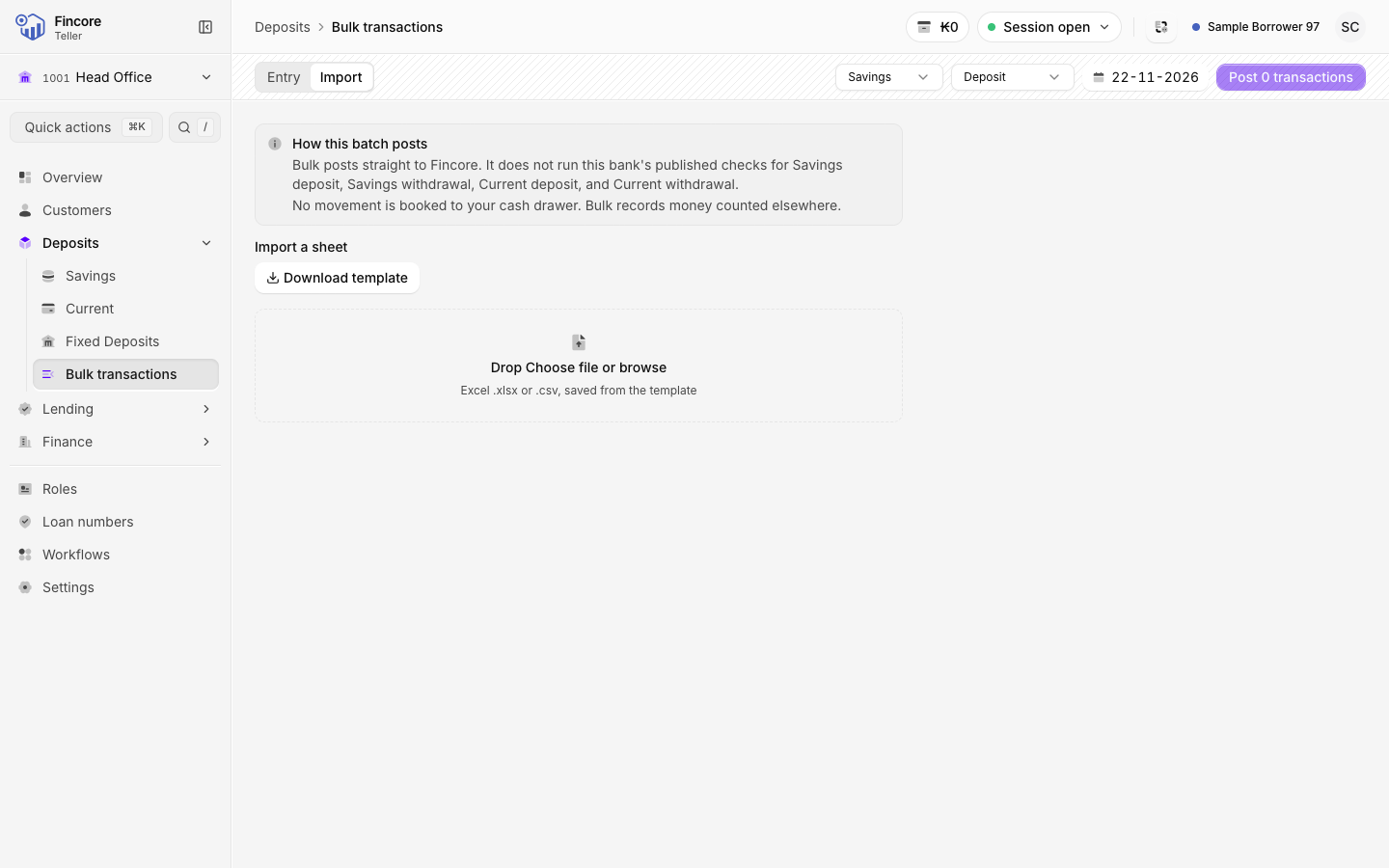
Select the Import tab. Select Download template, fill it in Excel, and save it as .xlsx or .csv. Then select Choose file.
The imported rows land in the same grid, where you can correct them. A note tells you how many rows were imported and anything the import could not read, such as a missing operation or an unknown payment mode.
Fix errors and check warnings
Rows with an error are marked and must be fixed before the batch can post. For example: an account that does not exist, an account of the wrong type, an amount of zero, or a missing destination.
Warnings do not block the batch but need a decision: two rows that post the same movement, or a withdrawal larger than the balance. Remove the rows you do not want, then tick I have checked the flagged rows.
Post the batch
Select the post button on the right of the header. It shows how many transactions will post. The rows post one by one and a progress bar shows how far the batch has gone.
Read the result
Each row ends as Posted, Failed or Unconfirmed. A failed row shows the core banking system's reason.
- Retry failed rows posts the failed rows again.
- Download report saves an Excel sheet with one line per row: the account and holder, the amount, the value date, the row's status, the transaction ID, the core banking system's message, and the account's balance after the batch. The balance is filled in only for a posted row, and left blank when it could not be read. A row that was never sent reads "skipped".
- Customer receipts prepares a receipt for each posted row. See Customer receipts.
- New batch clears the screen for the next batch.
If something goes wrong
An Unconfirmed row means the core banking system did not answer, so the transaction may or may not have posted. Do not key it again straight away. Download the report, then check that account's statement for the amount and date. Only enter it again if it is not there.
Your bank may differ
A batch posts directly. It does not run the checks your bank may have published for deposits and withdrawals at the counter, such as a signature check. The screen says so above the grid. Which bank accounts you can choose for a bank payment depends on your bank's setup.