Print a statement
Show a savings or current account's statement for a period, then print it or save it as Excel.
The statement is the account's passbook on screen: what the balance was at the start of the period, every movement inside it, and the balance at the end. What you print or export is exactly what the screen shows.
Choose the period
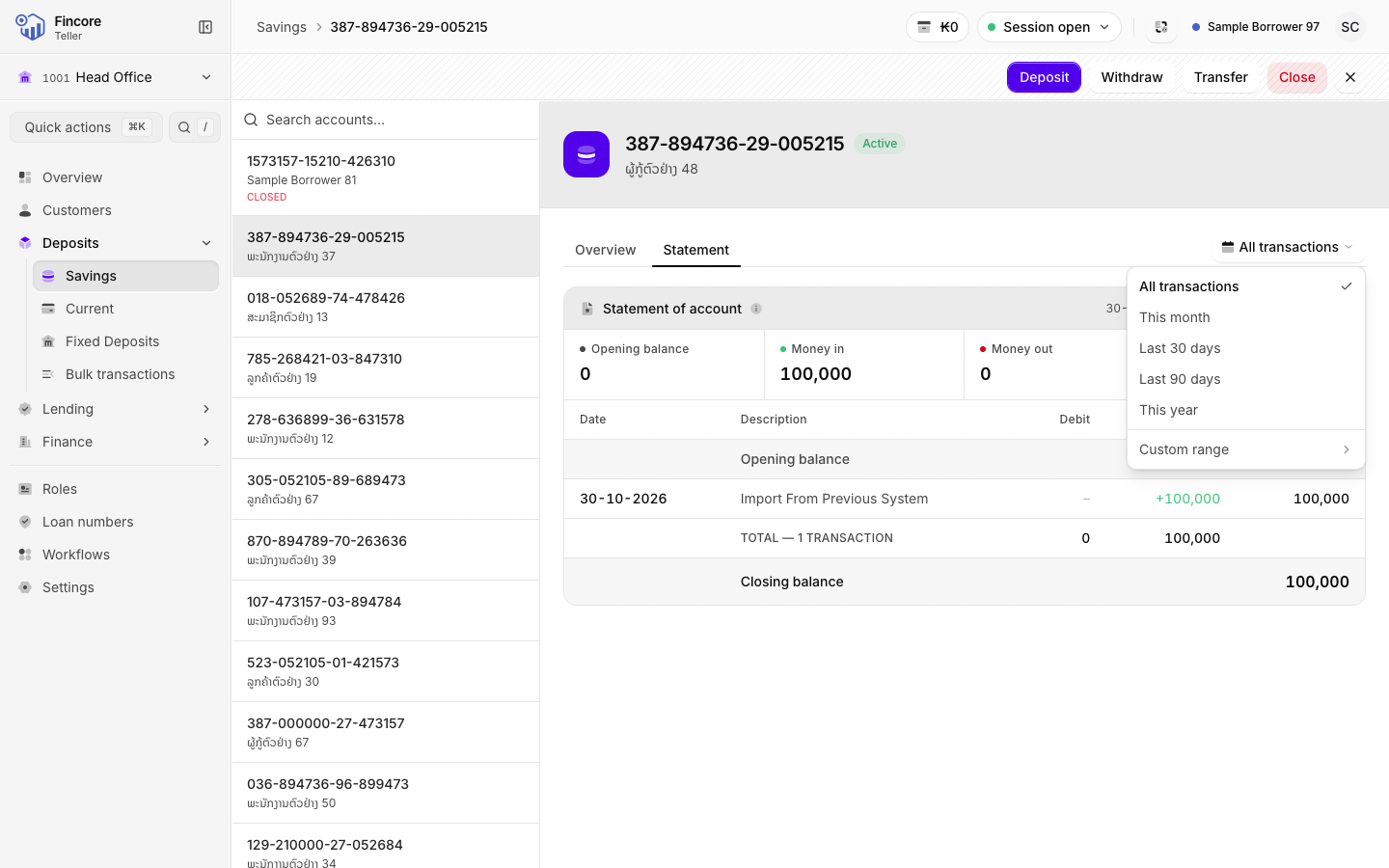
The statement opens on All transactions. To narrow it, select the period button on the right of the tab row and pick This month, Last 30 days, Last 90 days or This year.
For other dates, select Custom range, pick the first day and then the last day on the calendar, and select Apply.
Read the statement
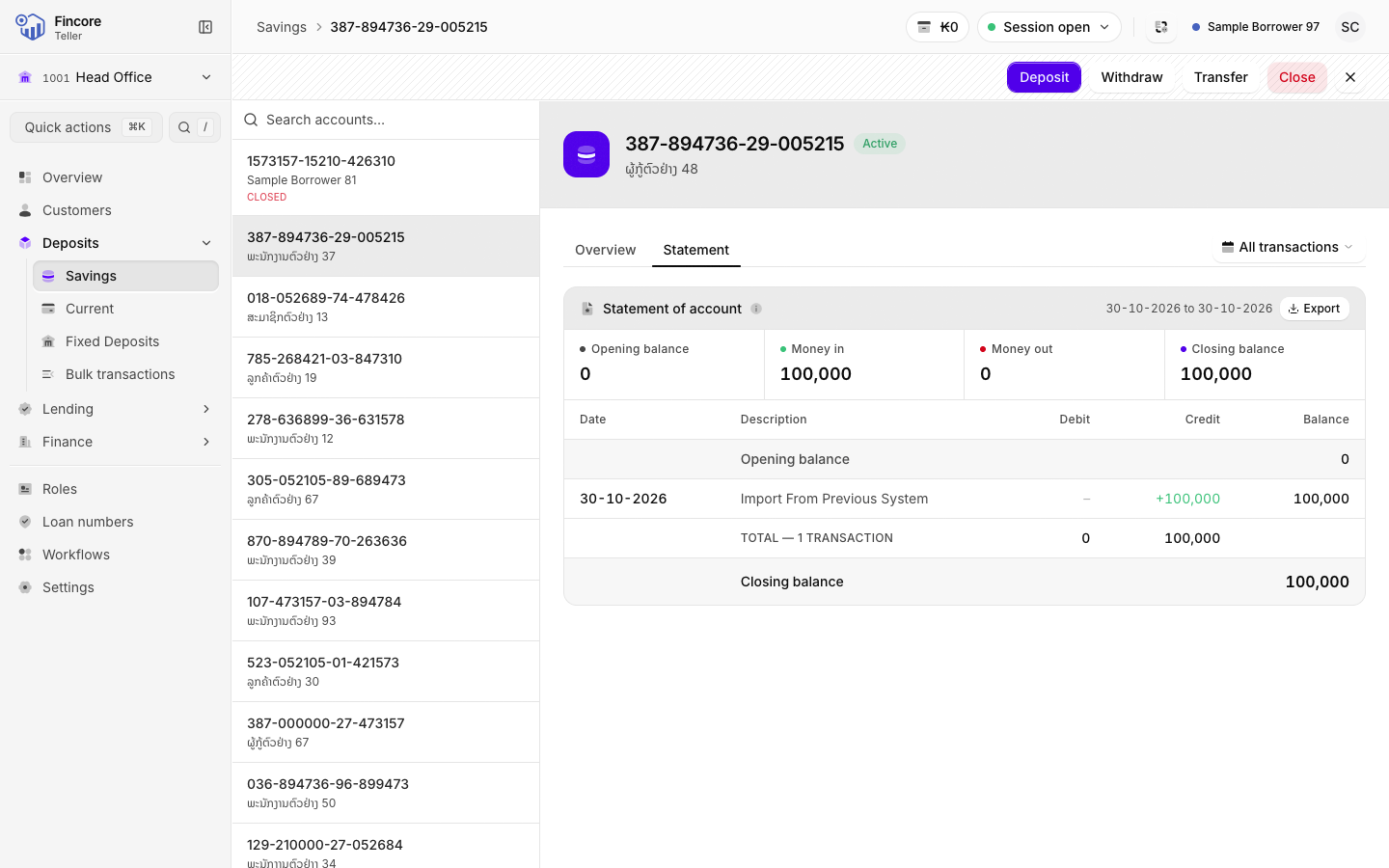
The figures across the top are the opening balance, Money in, Money out and the Closing balance. The table starts with the Balance brought forward row, lists each transaction with its running balance, totals the debits and credits, and ends with the closing balance.
A period with no transactions still shows a balance: the closing balance equals the opening one.
Print or export
Select Export in the statement's header, then:
- PDF / print opens your browser's print dialog. Print on paper, or choose "Save as PDF".
- Excel workbook (.xlsx) downloads the statement as a spreadsheet.
The printout and the file carry your bank's name, the account details and the period as dates.
Good to know
- Dates are shown as DD-MM-YYYY.
- The period you choose is not kept in the link. If you share the page, your colleague sees all transactions.
- The Statement tab is also on current accounts. A fixed deposit has a Schedule tab instead, which lists the interest payments the bank has scheduled.