Print customer receipts
Print the customer's slip after a deposit, withdrawal, transfer, account opening or close, and the receipts for a batch.
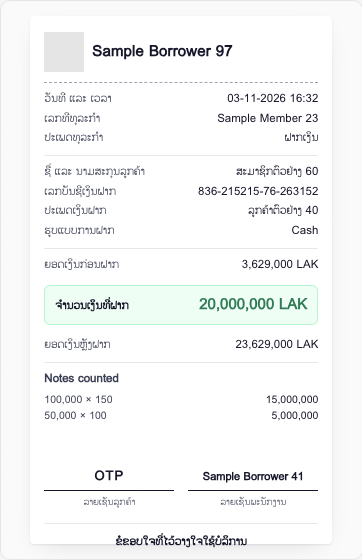
After the core banking system accepts a posting, the result screen shows the customer's receipt and a button to print it. The slip is laid out for an 80 mm receipt printer.
Print the receipt
Finish the posting
Complete the deposit, withdrawal, transfer, account opening or close as usual. The receipt appears on the result screen, under the amount and the notes.
Check it and print
Check the slip on screen, then select Print receipt. Your browser's print dialog opens: choose the receipt printer. You can print as many copies as you need while the result screen is open.
Close the screen
Hand the slip to the customer, then select Done.
Print every copy you need before you select Done. The app has no screen for reprinting a past receipt, so once the result screen is closed you cannot print that slip again.
What the receipt shows
Every figure on the slip is read back from the core banking system after the posting. It is never copied from what you typed.
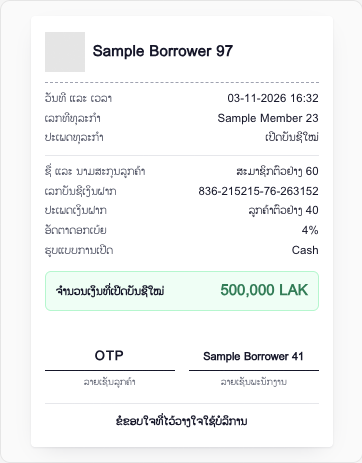
- The bank's name and logo, the transaction type, its date and the transaction number.
- The customer's name, the account number and the amount.
- The balance before and after, when the core banking system can confirm both.
- How the money moved: cash, bank transfer or internal transfer. For cash, the notes counted.
- Spaces for the customer's and the staff signatures.
A figure the core banking system does not record prints as a word, never as 0. When the balance before the posting cannot be confirmed, the slip says so in that line.
Receipts for a batch
After a batch on Bulk transactions has posted, select Customer receipts. The screen reads a receipt for every posted row. Then:
- Print all receipts prints one slip per row.
- The printer button on a row prints that slip alone.
- Export receipts saves the receipts as a spreadsheet.
A row whose receipt could not be produced is listed with the reason, and has nothing to print. On batch receipts, the balances before and after print as not confirmed.
Good to know
- The slip always prints in Lao, whatever language your screen is in.
- There is no receipt when a posting was refused or not confirmed.
- Closing a fixed deposit prints no receipt, because no payout transaction is recorded for it.
- If the screen says the posting went through but its receipt could not be produced, do not write a slip by hand. Find the transaction on the account's statement first.
Your bank may differ
The letterhead, the logo and the Lao wording of the slip come from your bank's own receipt format. If the customer's identity was confirmed by fingerprint or a one-time code in your bank's steps, the slip marks that in the customer's signature space instead of leaving it blank.