Capture a loan application
Create a draft loan application for a customer in four steps, then send it for approval.
A loan application records what the customer is asking for. You create it as a draft, complete the credit assessment, then apply and approve it.
Before you start
- The customer must already be registered. If they are not, register them first.
- Have the amount and term the customer wants, and what the loan is for.
Start a new application
Select Applications in the sidebar, then select New application at the right of the header.
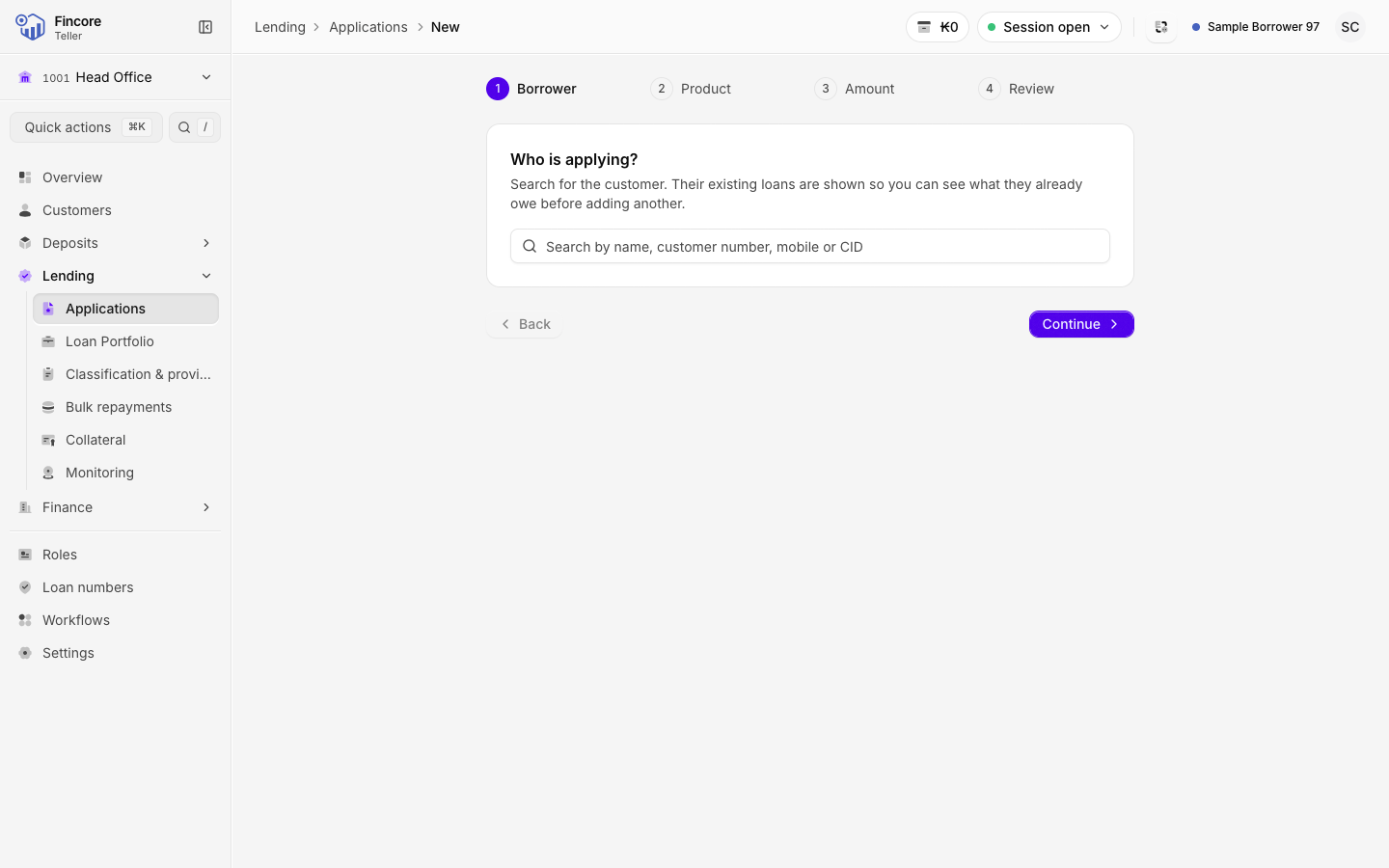
Choose the borrower
On the Borrower step, search for the customer by name, customer number, mobile number or CID, and pick them from the results. The customer's existing loans are listed under their name, so you can see what they already owe. To pick someone else, select Change.
Select Continue.
Choose the product and term band
On the Product step, select a product card. Each card shows the product's rate. Then choose the term band the loan falls in.
If a product has no term band, the screen says so and you cannot apply for it. Choose another product, or ask back office to check the product set-up.
Enter the amount and term
On the Amount step, enter the Loan amount in kip and the Term in months. The term must fit inside the term band you chose. The Application date is today unless you change it.
The screen does not calculate instalments. The core banking system builds the repayment schedule from the product.
Classify and review
On the Review step, fill in what you know: Loan sector, Funding source, Borrower type, Economic sector, Economic branch, Funding organisation and Purpose. All of them are optional. Anything left blank shows as Not set in the summary.
Check the summary, then select Create application.
Open the application
The screen confirms Application created. Select Open application to go to the application, or New application to start another.
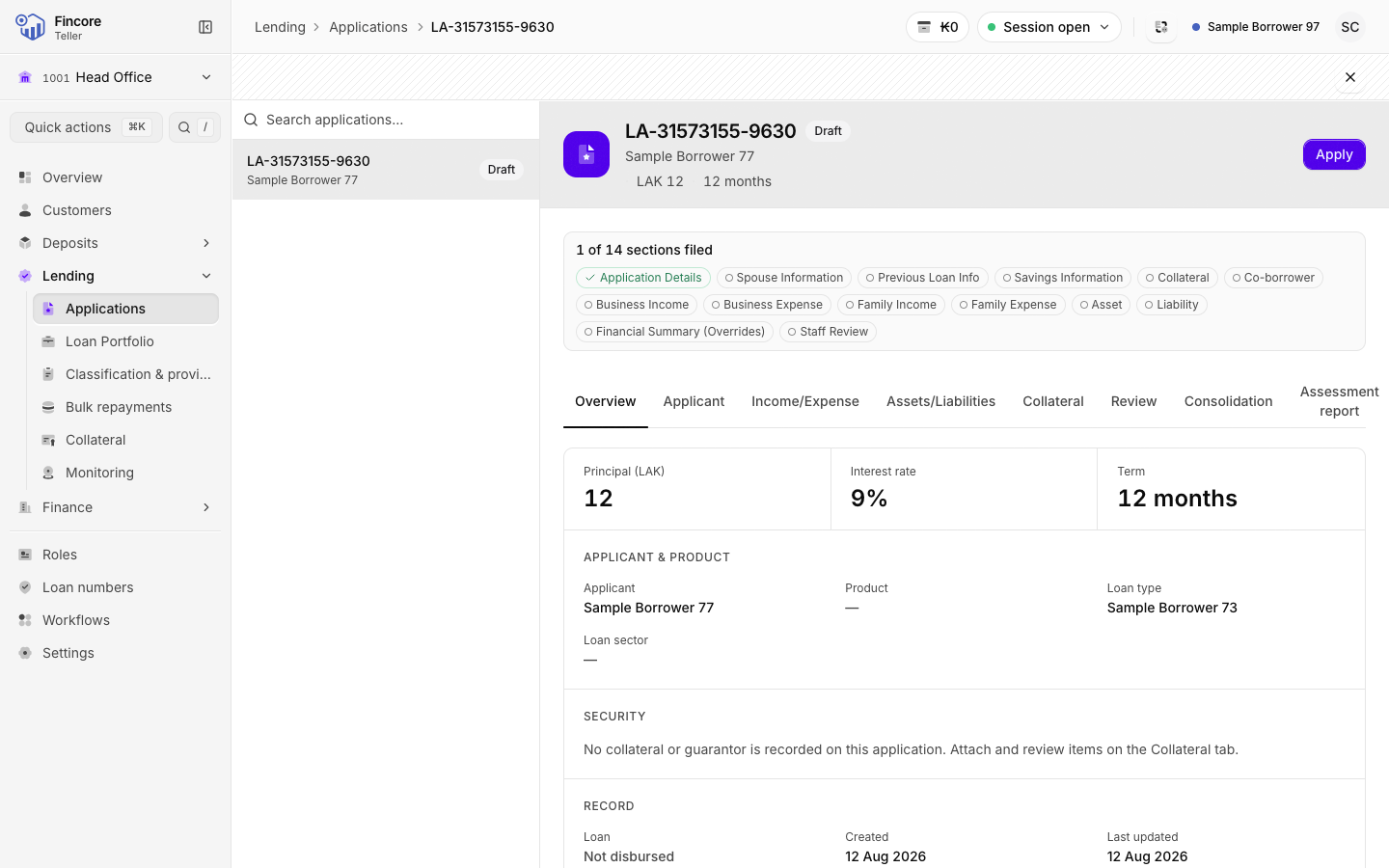
The application is a draft. Complete the credit assessment on its tabs before you send it on.
Apply, then approve
At the top right of the application record, the next allowed action appears:
- On a draft, select Apply to send it for approval.
- On an applied application, a user with approval rights selects Approve.
Each button posts at once. Check the application before you select it.
Good to know
- You can go back to any step with Back. Nothing is created until you select Create application.
- If a step has a problem, Continue stays available and the screen shows what to fix next to the field.
- On an approved application, Disburse is shown but cannot be selected. This app does not disburse an application. Ask your supervisor how your bank disburses approved applications.
- The Loan field on the application's overview shows Not disbursed until the application has been disbursed. After that it links to the loan's record.
- You can also start an application from a customer's record, with the customer already chosen.
Your bank may differ
Which products, term bands and classification lists you see comes from your bank's core banking set-up. Who may apply and who may approve depends on the roles your bank gives each user.