Post repayments in bulk
Enter or import many loan repayments at once, post them as one batch and print the receipts.
Use bulk repayments when you have many repayments to record at once, for example a group collection or a list from a field officer. Each row is posted as its own repayment.
Before you start
- Open your teller session. Posting is refused while your session is not open.
- For a file, have it in the bulk repayment template. You can download the template on this screen.
Open bulk repayments
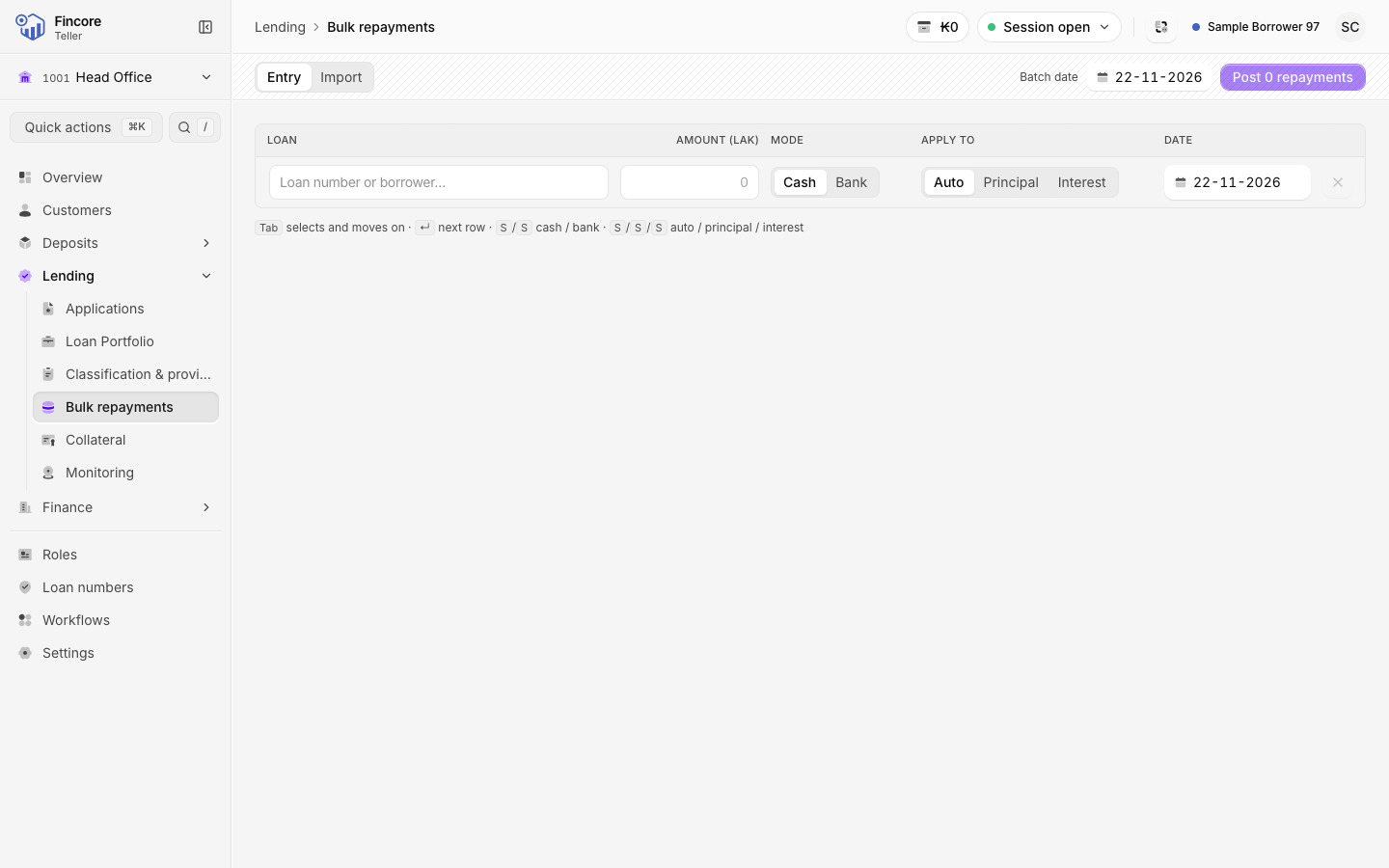
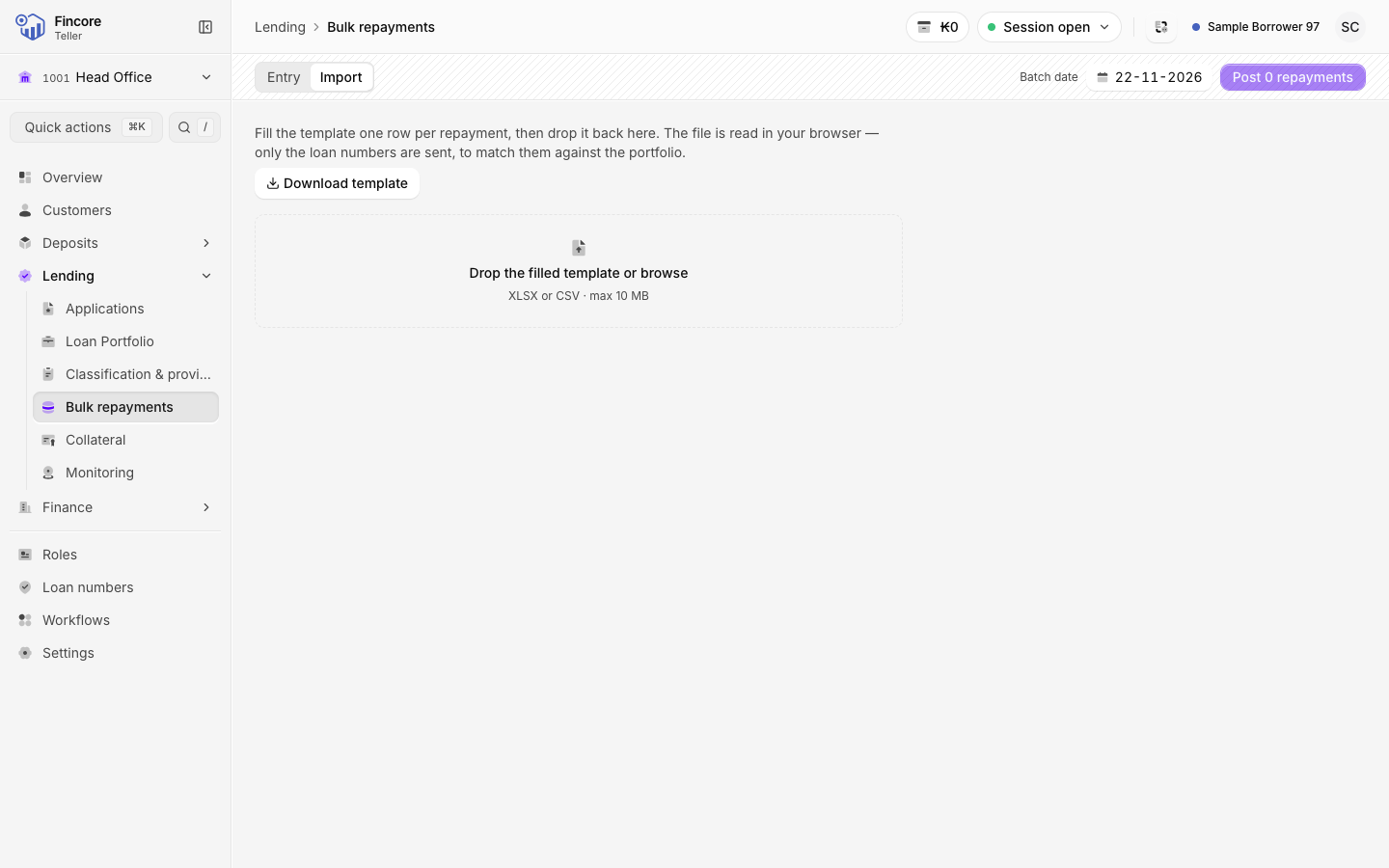
Select Bulk repayments in the sidebar. The screen has two tabs: Entry and Import.
Set the batch date
Check the Batch date in the header. New rows take this date. A past date is marked Backdated. A future date is not allowed.
Enter the rows
On the Entry tab, fill one row per repayment:
- Loan: type at least two characters of the loan number or the borrower's name, and pick the loan.
- Amount (LAK).
- Mode: Cash or Bank. For bank, choose the Bank account and add the Reference if you have it.
- Apply to: Auto, Principal or Interest.
- Date, if this row differs from the batch date.
Press Enter to move to the next row. A new row is added at the end. A problem on a row, such as a loan that cannot be found, is shown on that row.
Or import a file
On the Import tab, select Download template if you need the template. Fill one row per repayment, then drop the file on the screen or choose it. XLSX and CSV files up to 10 MB are accepted. The rows are loaded into the entry grid, where you can check and correct them.
Post the batch
The header shows how many rows the batch has and its total. Select Post … repayments.
If two rows have the same loan, amount and date, the screen warns you that they may be duplicates. Check them. If they are both real, select Post anyway.
Keep the page open until the batch finishes. Each row shows Waiting, Posted or Failed.
Finish the batch
When the batch is done, the header shows how many rows were posted and how many failed.
- Select Download report to keep a record of every row and its result.
- If some rows failed, check the reason on each row, then select Retry failed only to post only those rows again. Rows already posted are not posted twice.
- The customer receipts for the posted rows appear below. Select Print all receipts, or Export receipts to save them.
- Select New batch to start again.
Start a batch from the loan portfolio
On the Loans tab of Loan Portfolio, tick the loans you want, then choose Send to bulk repayments. Bulk repayments opens with one row per loan, filled with the next instalment due.
To work on paper or in a spreadsheet first, choose Repayment template instead. It downloads a template already filled with those loans. Fill in the amounts and import it here.
Good to know
- Only loan numbers are sent to look up the loans in your file. The file itself is read in your browser.
- The repayment types work the same way as in the single repayment dialog.
Your bank may differ
Which bank accounts you can choose for bank rows depends on your bank's set-up.