Book a direct loan
Quote a loan at the counter, apply it, approve it and pay it out without a separate application.
A direct loan goes from quote to payout at the counter. You try terms against the core banking system's own repayment schedule, print a quotation, then apply, approve and disburse the loan. There is no separate application or assessment.
Before you start
- To disburse a loan, open your teller session first.
- Applying, approving and disbursing are separate rights. Your bank may give them to different people.
Open the loan workbench
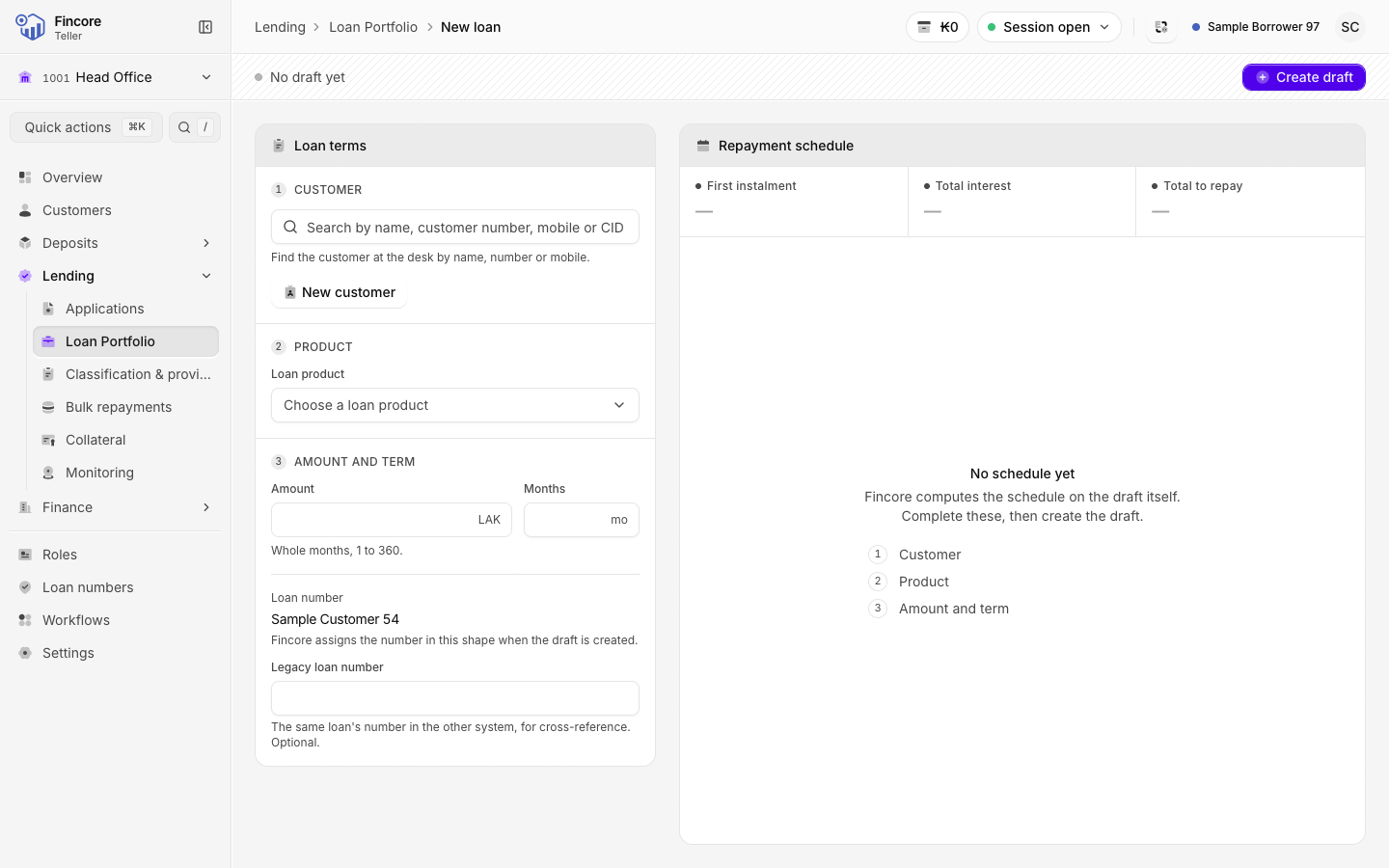
Select Loan Portfolio in the sidebar, open the Loans tab, then select Create loan.
Choose the customer
Under Customer, search for the customer by name, number or mobile.
If the customer is new, select New customer, enter the Given name (English) and Mobile, then select Create customer. If another customer already has that mobile number, the form shows them. Select Use this customer instead of creating a duplicate. Complete the rest of a new customer's record later, from their page.
Enter the product, amount and term
Choose the Loan product and its Term band, then enter the Amount and Months. Select Create draft.
This saves a draft loan in the core banking system and shows its Repayment schedule, with Total interest and Total to repay.
Try other terms and print a quote
While the loan is a draft you can change the amount, the term, the product or a Special rate. When you change anything, the schedule dims and Not recalculated appears. Select Recalculate to get the new schedule. To go back to the last schedule, select Discard changes.
When the customer agrees, select Print quote. The quote states that it is a quotation, not a contract.
Apply the loan
Select Apply. In the dialog, check the CIF, choose the Economic sector (BOL) and the Related party (BOL). The Loan category (BOL) is always Normal for a new loan.
Select Apply in the dialog. The core banking system recalculates the schedule on today's date first. If its figures differ from your quote, nothing is sent: the dialog shows both sets of figures and offers Recompute. Otherwise the loan goes for approval.
Approve the loan
A user with approval rights opens the loan from Loan Portfolio and selects Approve loan, checks the summary, and confirms with Approve. After approval, Print schedule prints the final schedule for the customer to sign.
Disburse the loan
On the approved loan, select Disburse. Choose how the money goes out:
- Cash: count the notes you hand to the customer. They must match the amount.
- Bank: choose the Bank journal.
The Disbursement date is today. You may pick an earlier day, which is marked Backdated, but not a future day. Select Disburse.
Good to know
- The screen never calculates instalments itself. Every figure on the schedule and the quote comes from the core banking system.
- You cannot print a quote or apply while the schedule is out of date. Recalculate first.
- A draft stays saved. To go back to it, open it from the loan list and select Open in workbench.
- A cash disbursement updates your cash drawer only after the core banking system accepts it.
Your bank may differ
Create loan only appears if your bank uses direct loans and its core banking system supports them. Some banks require a CIF on every loan. On those, a draft is created with a temporary CIF, and you must enter the customer's real CIF when you apply.