Complete the credit assessment
Fill in the assessment sections on a loan application and print the assessment report for sign-off.
The credit assessment is the file a credit officer builds before a loan is approved: the applicant, their income and expenses, assets and debts, collateral and the staff review. It lives on the tabs of the loan application.
Before you start
- Create the loan application first. The assessment is filled in on that application.
Open the application
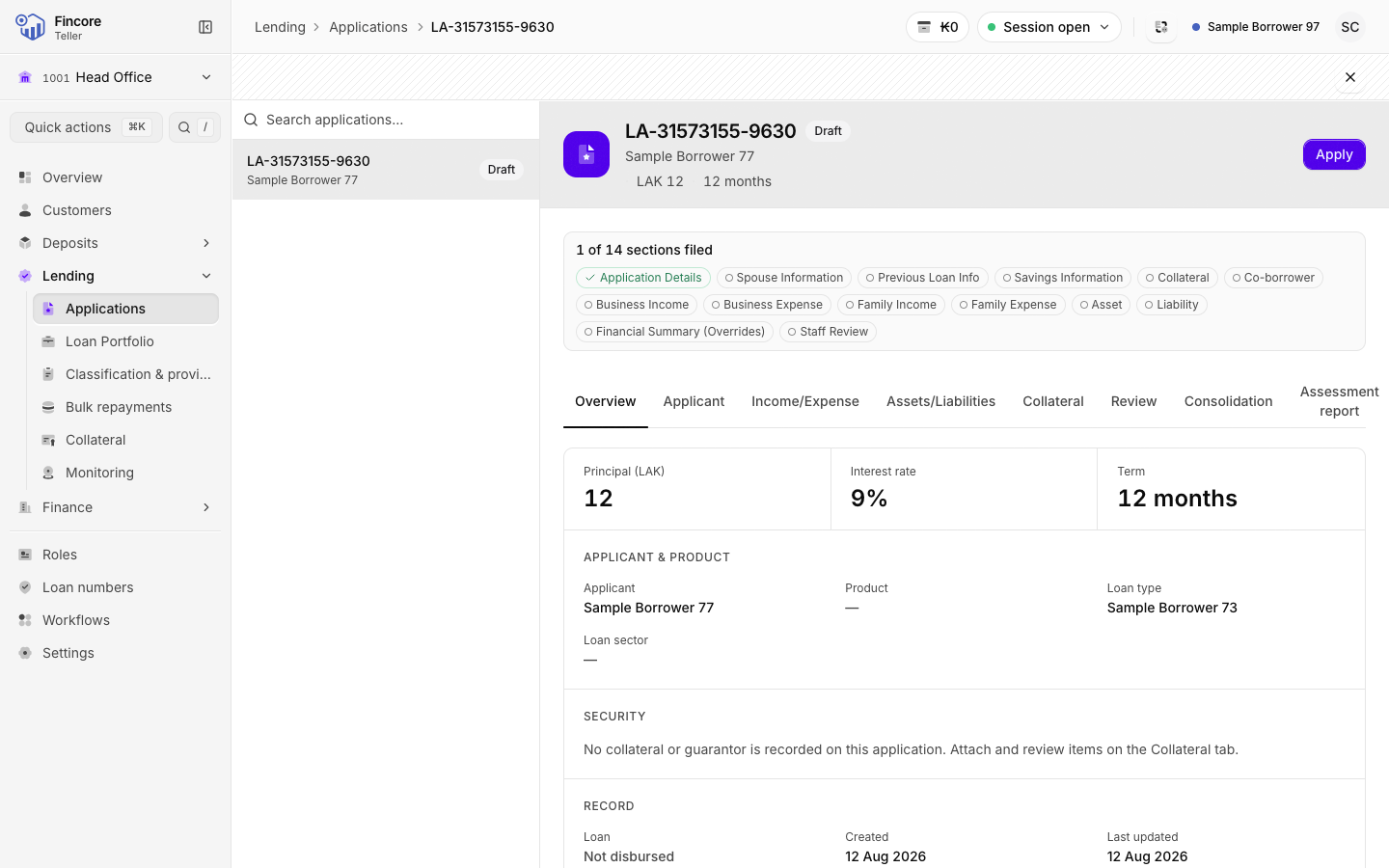
Select Applications in the sidebar and select the application. Above the tabs, a progress line, … of … sections filed, shows how many sections are filed. Each section is a small chip. Select a chip to jump to the tab that holds that section.
Work through the tabs
The sections are spread over these tabs:
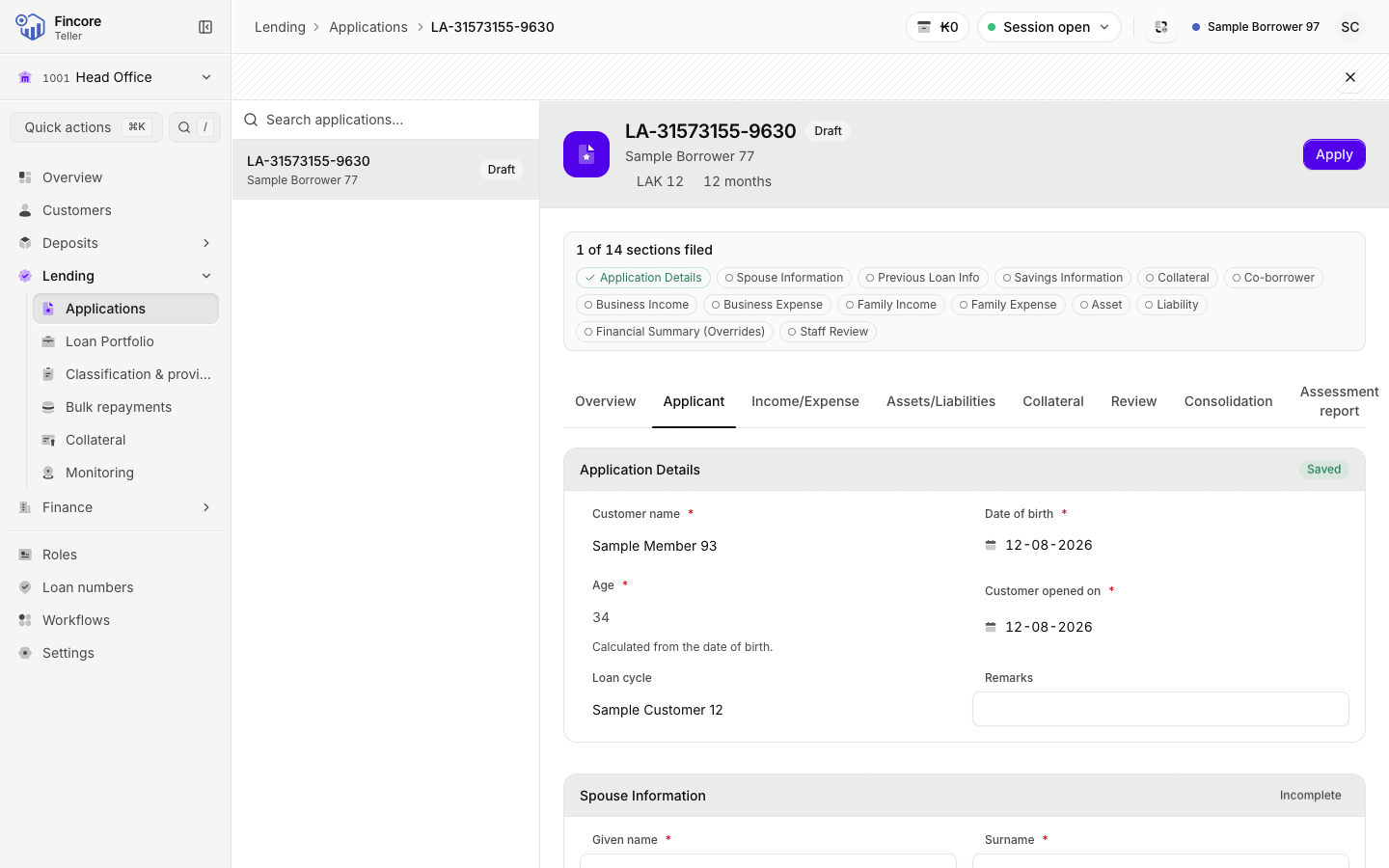
- Applicant: Application Details, Spouse Information, Co-borrowers, Previous Loan Info and Savings Information.
- Income/Expense: Business Income, Business Expense, Family Income and Family Expense.
- Assets/Liabilities: Asset and Liability.
- Collateral: the collateral attached to the application. Select Attach collateral to pick a registered item. See Register and look up collateral.
- Review: Financial Summary (Overrides), which the core banking system calculates, and Staff Review.
Fill in a section and save it
Each section saves on its own. Type the answers, then select Save on that section. Its status changes from Unsaved changes to Saved at ….
Sections that can hold several entries, such as Co-borrowers, show Add. Add one entry at a time and save each.
On Savings Information, select Fetch from accounts to copy the balances from the applicant's own deposit accounts.
Fix an incomplete section
If a section is marked Incomplete, the core banking system will not accept it yet. The section lists the marked fields it still needs. Answer them and save again.
Check earlier loans
The Consolidation tab compares this application with the applicant's previous loan cycles: income, expenses, assets and liabilities side by side.
Print the assessment report
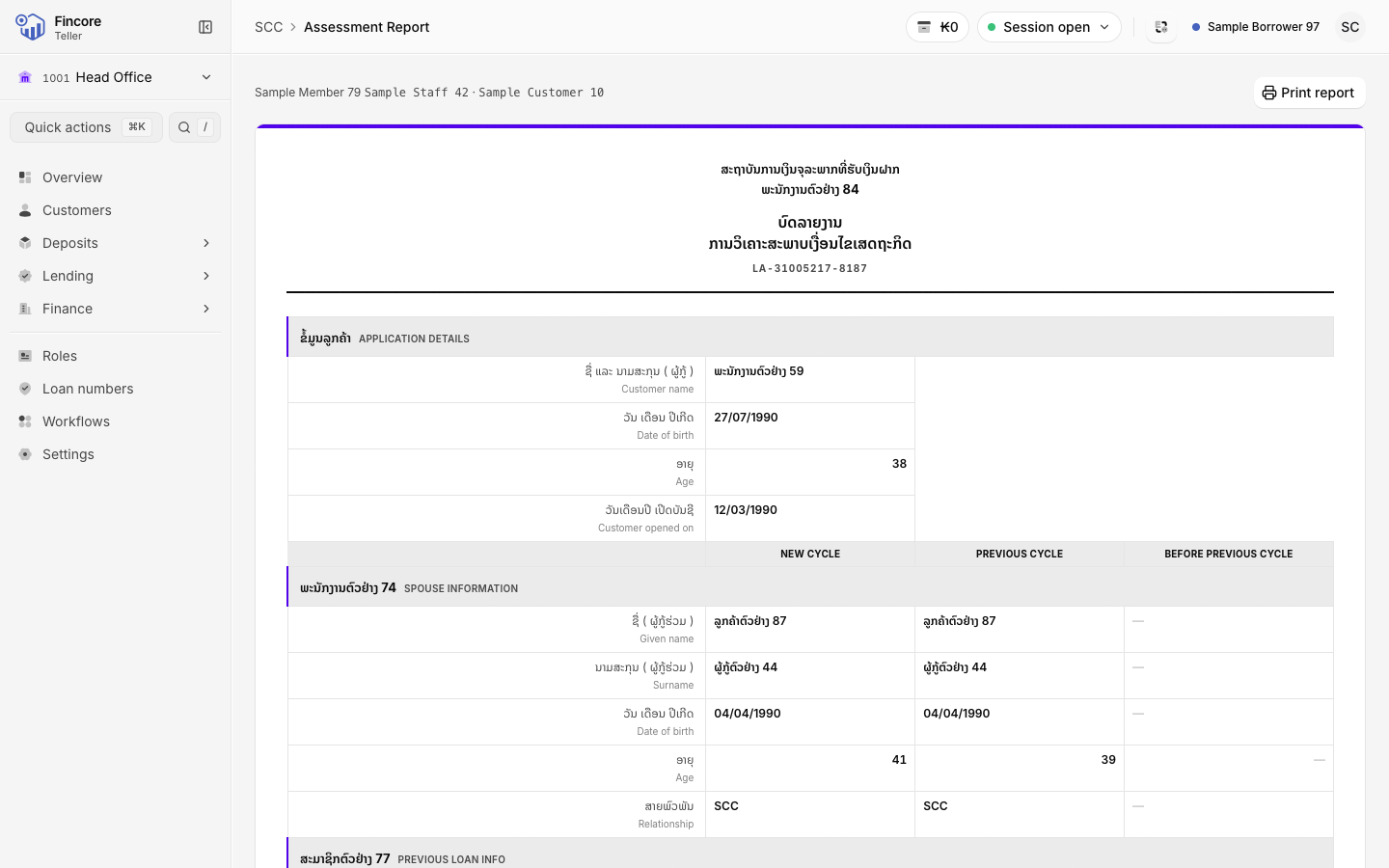
Open the Assessment report tab. It shows the bank's Loan Assessment Report form, filled from the sections above, with columns for this cycle and the two before it. Select Print report and print it, or save it as a PDF, for the approver to sign.
Good to know
- The report is always in Lao, whatever language your screen is in. It reproduces the bank's paper form.
- On the report, a dash means the cycle is on file but that answer is missing. An empty box means there is no such cycle, for example for a first-time borrower.
- If nothing has been captured yet, the report still shows the blank form, so you can print it and complete it by hand.
- Totals in Financial Summary (Overrides) come from the core banking system. You cannot type them.
- Once the application becomes a loan, the same report is on the loan record's Assessment report tab.
If something goes wrong
- If a section says it could not be loaded, the core banking system did not answer. Reload the page. Do not read it as "nothing entered".
- If the report says the previous cycles could not be read, the two right-hand columns are empty for that reason, not because the applicant has no history. A note saying so is printed on the sheet.
Your bank may differ
Which sections your bank asks you to complete, and which fields are required, depends on your bank's core banking set-up.